

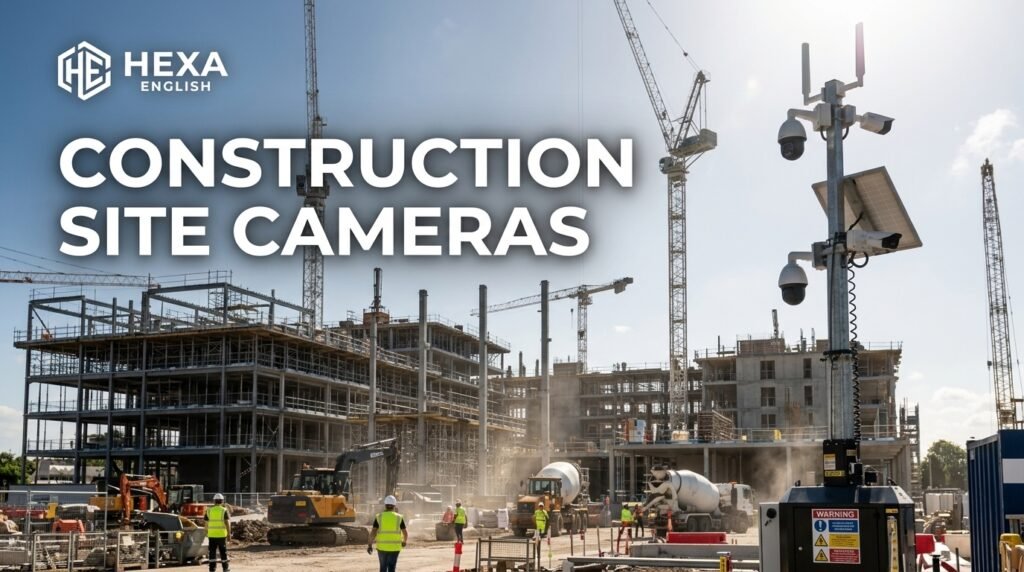
Construction site cameras work best when you choose the job first and the hardware second. A camera bought for marketing will not stop a night theft, and a camera bought for theft will not produce a clean time-lapse for an owner. The four jobs are security, documentation, remote management, and AI safety, and each one needs a different setup.
Most buyers start with resolution and price, then discover the real problems later: no power, no signal, no storage, or footage nobody can use. A jobsite camera must survive dust, rain, vibration, and months of continuous operation. It must also survive the moment that matters most, which is usually after hours, in bad weather, or during a dispute.
Quick Answer: Which Construction Site Camera Should You Start With?
Start with the job, not the camera. If theft is the risk, start with a PTZ camera or a mobile surveillance trailer covering the gate, laydown area, and equipment yard. If proof of progress is the risk, start with a fixed 4K camera with a clear view of the active work front.
If you manage the site from another city, start with a solar and cellular system that gives you live viewing without site Wi-Fi. If safety is the risk, start with AI analytics for PPE and restricted-zone alerts, and set the alert rules before you switch the system on. One camera can sometimes do two jobs, but no single camera does all four jobs well.
| Your main job | Start with | Why it fits |
| Stop night theft | PTZ camera or monitored trailer | Wide coverage, deterrence, and a response, not just recording |
| Prove progress | Fixed 4K camera + time-lapse plan | Stable framing, sharp stills, and a clean video sequence |
| Manage remotely | Solar + cellular camera system | Live view without power or Wi-Fi, with cloud storage |
| Improve safety | AI camera with PPE and zone alerts | Real-time flags for missing PPE and restricted entry |
| Market the project | Fixed 4K or 8K camera + edited time-lapse | High-resolution footage owners and investors actually watch |
| Small residential build | One or two solar cellular cameras | Low cost, fast setup, and easy redeployment |
The most common mistake is buying the cheapest camera and expecting enterprise results. A consumer camera can watch a small site, but it will not give you monitored deterrence, chain-of-custody evidence, or multi-site reporting. A construction-grade system costs more because it is built for months of outdoor use, not for a weekend at home.
The Four Jobs a Construction Camera Does
1. Security and Theft Deterrence
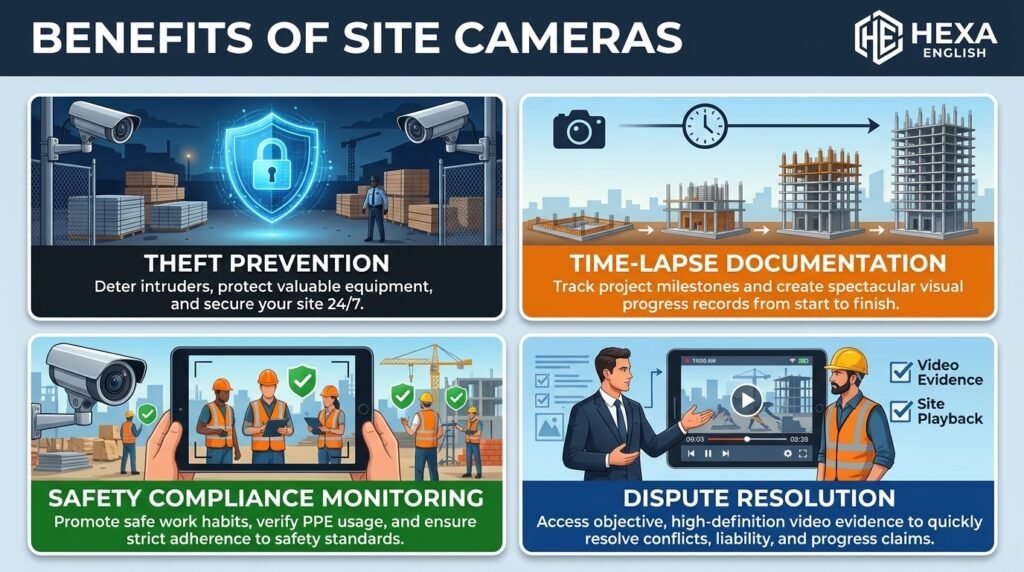
Security cameras protect equipment, materials, tools, and copper after hours. Construction sites are open, busy during the day, and empty at night, which makes them easy targets. A visible camera, a strobe, a siren, and a talk-down speaker change that calculation for an opportunistic thief.
Recording alone is a weak deterrent if nobody watches the feed or responds to the alert. Active deterrence means the system can flash a light, sound a siren, and speak to an intruder in real time. Professional monitoring means a trained person reviews the alert and decides whether to call police, rather than leaving that decision to a tired superintendent at 2 a.m.
Theft is not only about tools disappearing from a trailer. Copper wire, lumber, HVAC equipment, and fuel are high-value targets, and they are often taken in stages. A camera that covers the laydown area, the gate, and the equipment yard gives you a complete picture of what left, when, and through which exit.
2. Time-Lapse and Progress Documentation
Time-lapse cameras turn months of work into a short, clear video that owners, investors, and future clients can understand in minutes. A fixed camera takes a photo at a set interval, and those photos are edited into a sequence that shows the building rising. The result is useful for progress reporting, marketing, and project archives.
Documentation is also a dispute tool. A timestamped photo can show that a delivery arrived on a certain day, that a wall was built before a weather event, or that a trade was on site during a disputed week. Without that visual record, a delay claim often becomes one person’s memory against another’s.
A good time-lapse needs a stable mount, a clean view, and a consistent interval. A camera that moves, shakes, or loses its view when scaffolding rises will produce a broken video. Plan the camera position for the whole project, not just for the first month.
3. Remote Management and Owner Updates
Remote management lets a project manager, owner, or general contractor see the site without driving to it. A live view can answer a simple question in seconds: is the delivery here, is the crane working, is the crew on site, or is the site shut down for weather? That answer saves a trip, a phone call, and a day of uncertainty.
Owners value transparency, but they do not want raw footage with no context. A private owner portal with live viewing, daily photos, and time-lapse clips gives them confidence without giving them control of your security system. A public live feed is a different choice, and it should only be used for marketing, with worker privacy and site safety considered first.
Remote viewing also helps with multi-site management. A single dashboard that shows several projects lets a manager spot a problem site, compare progress, and move resources. That value grows with every site you add, which is why platform choice matters as much as camera choice.
4. AI Safety and PPE Compliance
AI safety cameras use video analytics to flag conditions that a human might miss. The most common examples are missing hard hats, missing high-visibility vests, and entry into a restricted zone. Some systems also flag vehicle and pedestrian proximity, which matters on busy sites with heavy equipment.
AI safety is a coaching and documentation tool, not a replacement for supervision. A camera cannot enforce fall protection, trench protection, or silica controls, and it cannot replace a competent supervisor. It can, however, give a safety manager a short list of events to review each morning, rather than hours of footage to watch.
The risk with AI safety is alert fatigue. If a system sends hundreds of alerts for wind, tarps, headlights, and authorised work, people stop reading them. Set detection zones, alert hours, and expected-activity windows before you judge whether the AI is working.
Construction Camera Types Compared
Fixed, PTZ, Panoramic, and Interior Cameras
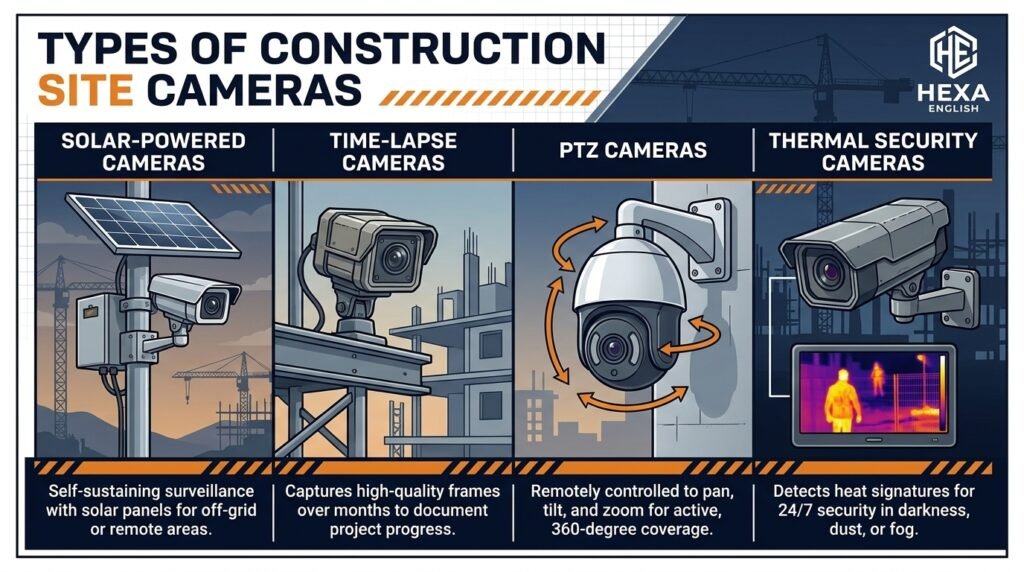
Fixed cameras point at one view and never move, which makes them ideal for documentation. A fixed camera on a gate, a laydown area, or a work front gives you a consistent, comparable image every day. That consistency is what makes time-lapse and progress comparison work.
PTZ cameras pan, tilt, and zoom, which makes them ideal for wide-area security. One PTZ camera on a mast can cover a gate, a yard, and a building face by moving between presets. The trade-off is that a PTZ camera only records what it is pointing at, so it can miss an event in another direction.
Panoramic cameras give a wide overview in one image, which makes them ideal for site overview and access monitoring. TrueLook’s panoramic guide suggests two to four panoramic or wide-angle cameras for most commercial projects under 100,000 square feet. That rule gives you a starting count, not a final design, because site shape and phase change the answer.
Interior cameras matter once work moves inside. A fixed interior camera can document drywall, MEP rough-in, and finishes, and it can also monitor high-value material stored inside. Interior cameras need the same privacy rules as exterior cameras, and they must never be placed in bathrooms or changing areas.
| Camera type | Best for | Watch out for |
| Fixed camera | Time-lapse, gates, laydown, work front | Limited view; needs repositioning as the site changes |
| PTZ camera | Wide-area security, yards, perimeters | Misses events outside its current view |
| Panoramic camera | Site overview, access, staging | Lower detail at the edges; check resolution by distance |
| Interior camera | Finishes, MEP, stored material | Privacy, power, and Wi-Fi access inside the building |
| Time-lapse camera | Marketing and progress video | Some models have no live security or remote viewing |
| Solar cellular camera | Off-grid, small, or early-phase sites | Data cost, battery life, and cellular signal limits |
Time-Lapse Cameras vs. Security Cameras
Time-lapse and security cameras look similar, but they are built for different outcomes. A time-lapse camera prioritises a stable, high-quality still image at a set interval, and it may store those images locally on a memory card. A security camera prioritises continuous or motion-triggered video, live viewing, alerts, and cloud storage.
The Brinno BCC200 is a clear example of this split. It offers time-lapse intervals from 1 second to 1 hour, a start and stop timer, HDR, and AA battery power, but it has no cellular modem and no remote viewing. That makes it a strong standalone time-lapse camera and a weak security camera, because you cannot see the site live or receive an alert.
A construction-grade platform such as TrueLook, EarthCam, or OxBlue can do both jobs from the same camera. The same fixed camera can record a daily time-lapse still, stream live video, and store cloud footage for security. That combined value is the main reason to pay for a platform rather than a single camera.
Mobile Surveillance Trailers vs. Pole-Mounted vs. Fixed Systems
Mobile surveillance trailers are the most visible deterrent option. A trailer carries a telescoping mast of 20 to 30 feet, multiple cameras, floodlights, two-way audio, solar power, batteries, and cellular connectivity. It can be delivered, set up, and moved as the site changes, which suits short projects and high-theft phases.
Pole-mounted systems sit between trailers and fixed cameras. A dedicated pole gives you height and a stable view without the footprint of a trailer, and it often carries a solar panel and cellular modem. Pole systems suit medium and long projects where the camera position will stay useful for months.
Fixed systems are the best choice once power and network are available and the camera position is stable. A fixed camera on a building, a fence, or a permanent pole gives you the cleanest time-lapse and the most reliable recording. Fixed systems also scale well, because you can add cameras to the same platform as the site grows.
| System | Best for | Main drawback |
| Mobile trailer | Short projects, high theft risk, off-grid sites | Takes site space, costs more per month, and can itself be a target |
| Pole-mounted system | Medium projects, stable camera positions | Needs pole installation and is less mobile than a trailer |
| Fixed system | Long projects, documentation, multi-camera sites | Needs power and network, and is harder to move |
How Many Cameras Does a Construction Site Need?
Camera Count by Site Size and Phase
Camera count depends on site size, site shape, risk, and phase, not on a single magic number. A small residential build may need one camera on the entrance and one on the material storage area. A large commercial site may need a camera for each gate, each laydown area, each equipment yard, and the active work front.
TrueLook’s panoramic guide gives a useful starting point: two to four panoramic or wide-angle cameras for most projects under 100,000 square feet. Use one camera for the primary work zone and one for access, staging, and laydown areas, then add cameras for additional gates, yards, or buildings. Larger campus, phased, or multi-building projects need more cameras, positioned to follow the active front.
Phase matters because the site changes every week. During earthwork and foundations, the priority is the gate, the equipment yard, and the perimeter. During structure and envelope, the priority shifts to the work front, crane operations, and material deliveries. During interior and finishes, interior cameras and stored-material coverage matter more.
| Site type | Starting camera count | Priority views |
| Small residential build | 1 to 2 cameras | Gate, material storage |
| Single commercial building under 100,000 SF | 2 to 4 cameras | Work zone, gate, staging, laydown |
| Large commercial or multi-building site | 4 to 8 cameras | Each gate, yard, laydown, and active front |
| High-rise or stadium project | 8 or more, plus high-resolution documentation | Tower view, crane, gates, yards, and interior |
| Infrastructure or linear project | Mobile units moved with the work | Active front, equipment, and access points |
Placement Map: Gates, Laydown, Equipment, and Active Front
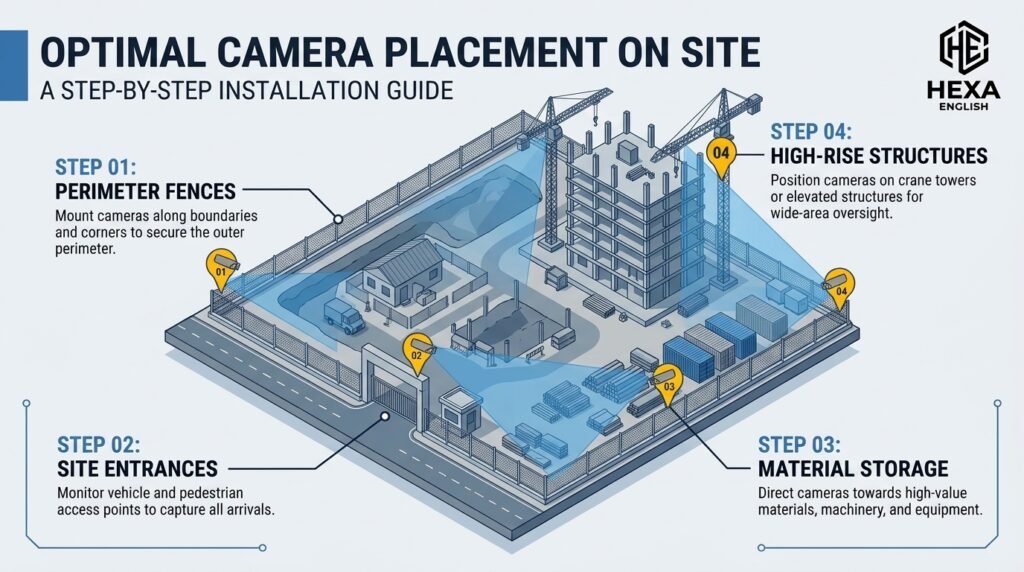
Placement starts with a site walk, not with a catalogue. Mark the gates, the equipment zones, the material storage areas, and the active work front on a rough site map. Then place cameras so each high-risk area is covered by at least one camera, and each camera has a clear view without a blind spot created by a container, a crane, or a stack of material.
Mount cameras at 10 to 12 feet where possible, angled to cut glare and prevent tampering. A camera within reach can be ripped off within days, and a camera pointed into the sun will produce useless footage at the time of day you need it most. Test the view at different times of day before you finalise the mount.
Cover the gate first, because every person, vehicle, and delivery passes through it. A gate camera gives you arrival and departure times, delivery proof, and a record of who entered the site. A second camera on the laydown and material storage area protects the highest-value static assets, and a third camera on the equipment yard protects machines that are expensive to replace and easy to move at night.
Do not forget the active front, because that is where progress, safety, and disputes happen. A camera on the work front documents the sequence of work, the conditions on a given day, and the trades present. A camera on a perimeter gap, a rear fence, or a dark corner is also worth adding, because thieves look for the least-watched entry point.
Phase-Change Plan: When to Move a Camera
Construction sites move, and a static camera plan becomes outdated within weeks. Scaffolding rises, a building blocks a view, and the active front shifts to another wing. A camera that was perfect in month one can be useless in month three if nobody re-aims it.
Build a phase-change review into the camera plan. At each major phase change, walk the site again, check each camera view, and move or re-aim cameras that no longer cover a high-risk area. A PTZ camera can help here, because its presets can be changed remotely, but a fixed camera may need a physical move.
Trailers are the easiest cameras to move, which is why they suit early phases and high-risk periods. Fixed cameras are the hardest to move, which is why they should be placed where the view will stay useful for the longest time. Pole-mounted cameras sit in the middle, because the pole can stay while the camera angle changes.
Power and Connectivity: Solar, Cellular, Wi-Fi, and Wired
Off-Grid Solar and Cellular for Sites With No Power or Internet
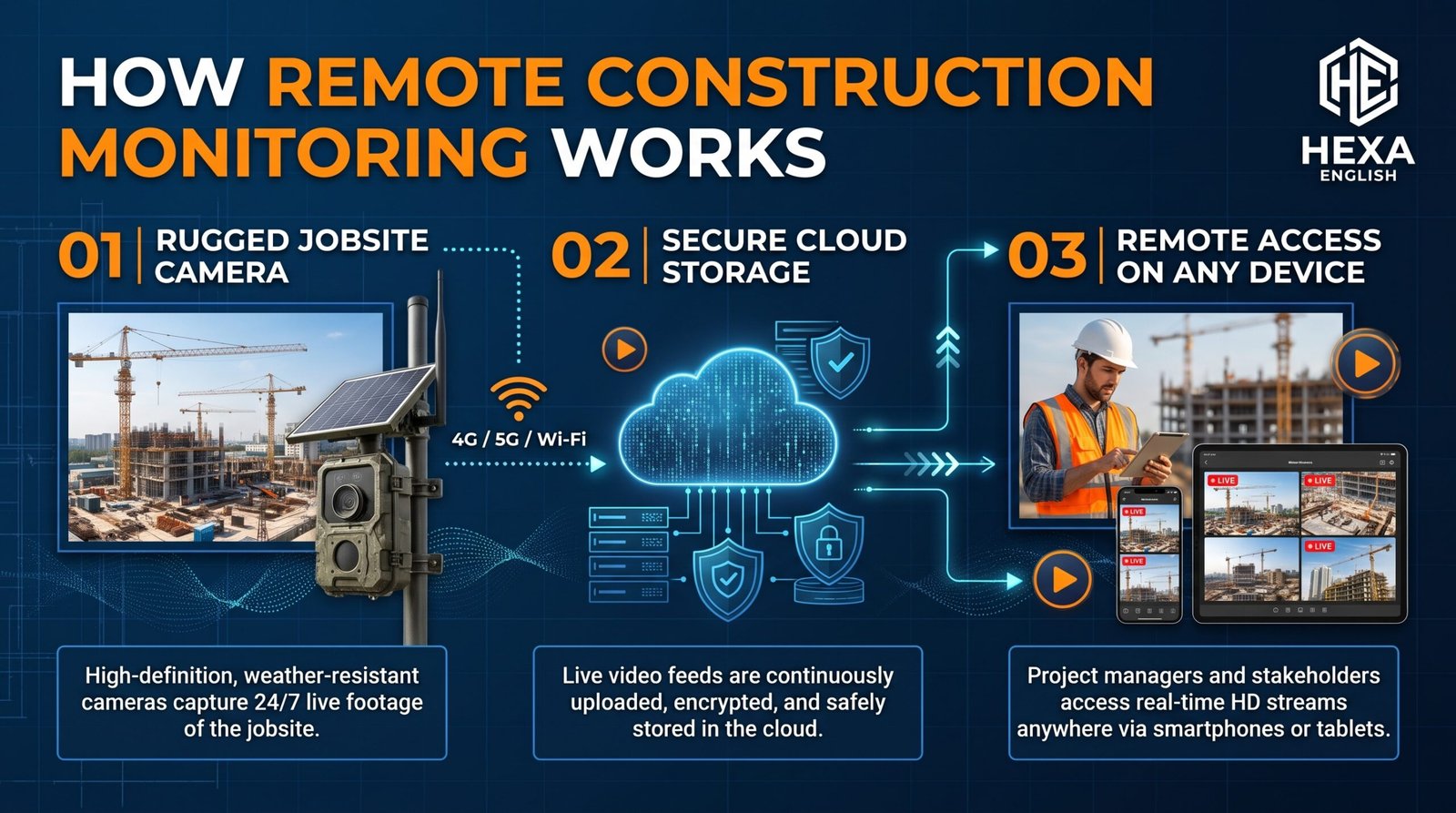
Solar and cellular cameras are the standard solution for early-phase sites with no power and no internet. A solar panel charges a battery, and a 4G LTE modem sends live video and alerts to the cloud. That combination lets you monitor a remote site from anywhere, without waiting for a temporary power pole or a broadband install.
HD Relay is one US example of this model, offering LTE-enabled cameras for remote monitoring, jobsite security, and time-lapse without onsite internet. Its pitch is live 4K video, cloud recording, and cellular connectivity in a plug-and-play system, with remote access from any desktop or mobile device. That model suits contractors who need a fast deployment and do not want to manage a site network.
Vosker is a consumer-grade example of the same idea, with a solar-powered LTE camera, a built-in SIM, and a battery pack. Its V300 model lists 1080p video, 100 feet of motion detection and night vision, a 14,000 mAh battery, and local microSD backup. That specification is useful for a small site, but it is not the same as a construction-grade platform with monitoring and multi-camera management.
When Wired or Wi-Fi Is Better Than Cellular
Wired and Wi-Fi cameras are better once power and network are available, because they give you higher bandwidth, lower data cost, and more reliable continuous recording. A wired camera on a Power over Ethernet (PoE) switch can stream high-resolution video all day without worrying about a cellular data cap. A Wi-Fi camera can work well inside a building where the network is already in place.
Cellular data cost is the main limit for LTE cameras. Buyer-guide examples cite $15 to $50 per month per camera for cellular data and cloud storage, and Vosker plans are cited at $10 to $40 per month. Continuous live viewing uses far more data than motion-only recording, so your data plan must match your viewing habits, not just your camera count.
Test cellular signal at each mount point before you install anything. A camera with no signal only stores local footage, which is useless if the camera itself is stolen. A signal test takes minutes and prevents the most common deployment failure, which is a camera that looks installed but never uploads a single clip.
| Power / connectivity model | Best for | Main limit |
| Solar + LTE | Off-grid, early-phase, remote sites | Data cost, battery life, cloudy weather |
| Battery + Wi-Fi | Small sites with Wi-Fi, short-term use | Battery life and Wi-Fi range |
| Wired / PoE | Permanent, high-resolution, multi-camera sites | Needs power and network infrastructure |
| Trailer: solar + battery + cellular | Short, high-risk, relocatable security | Monthly rental cost and site footprint |
| Hybrid: local + cloud | High-value sites that need resilience | Higher cost and more complex setup |
Solar Panel Size, Battery Days, and Cloudy Weather
Solar power is not magic, and a small panel on a cloudy site will leave gaps in coverage. The panel must be sized for the camera’s power use, the battery must last through cloudy days, and the panel must face the sun without shade from a building, a crane, or a tree. A panel shaded for half the day will not charge the battery enough for a full night of recording.
Battery backup is the number to ask about, not just panel wattage. A trailer example in the SERP lists up to 7 days of battery backup plus a generator backup, while a consumer solar camera may only last a few days without sun. Ask the vendor for battery days at your expected recording mode, not at an ideal lab setting.
Winter and short daylight also affect solar performance. A system that works in summer may struggle in December, when days are shorter and the sun is lower. Plan for the worst month, not the best month, and add a generator backup or a larger battery if the site is in a northern climate or a shaded location.
Resolution, Night Vision, and Durability
2K vs. 4K vs. 8K by Use Case
Resolution should match the use case, not the marketing. A 2K camera is enough for a site overview and access control, because you only need to see that a person or vehicle entered an area. A 4K camera is the right choice for progress documentation and legal or insurance evidence, because you need to read details, identify faces, and prove what happened.
TrueLook’s guide gives a clear resolution rule: 2K for overview and access, 4K for progress documentation, 4K to 8K for marketing and investor reporting, and 8K for stadiums, infrastructure, and landmark projects. That rule prevents two mistakes: buying 8K for a gate camera, and buying 2K for a time-lapse that will be shown to investors.
Optical zoom matters more than digital zoom for security. A camera with 5x optical zoom, such as the Reolink RLC-511WA, can zoom in on a detail without losing image quality. Digital zoom only enlarges the pixels you already have, which quickly becomes blurry and useless for identifying a person or a license plate.
Night Vision, Colour Night Vision, and Floodlights
Night vision is critical, because most theft happens after hours. Infrared night vision gives you a black-and-white image in darkness, and it is the standard for most security cameras. Colour night vision uses a spotlight or a low-light sensor to give you a colour image at night, which can help identify clothing, vehicles, and faces.
Floodlight cameras combine a camera with a bright light, which deters intruders and improves night image quality. A floodlight that switches on when motion is detected makes the intruder visible and alerts anyone nearby. A strobe light and siren go further, because they create a visible and audible deterrent that is hard to ignore.
Night-vision range must match the area you need to cover. A camera with 100 feet of night vision can cover a yard, but it cannot cover a large laydown area from a single mast. Check the range in the vendor specification, and test it at night on your site, not just in a product video.
IP68, IK10, NEMA 4X, and Jobsite Durability
Durability ratings tell you whether a camera will survive a construction site. TrueLook lists IP68, IK10, and NEMA 4X as its exterior standard, and that combination is worth understanding. IP68 means the camera is dust-tight and can handle continuous submersion, which covers heavy rain and standing water.
IK10 is the highest vandal and impact resistance rating, which matters on a site where a camera can be hit by debris, a tool, or a deliberate attack. NEMA 4X adds corrosion resistance for coastal or chemical environments, which matters for sites near the sea or in industrial areas. A consumer camera with only IP66 may survive rain, but it may not survive the same level of impact or corrosion.
Dust, vibration, and lens dirt are daily problems on a construction site. A camera lens covered in dust will produce a hazy image, and a mount shaken by heavy equipment will produce a shaky video. Add a monthly lens and mount check to the maintenance plan, and choose a mount that can handle vibration without loosening.
| Rating | What it means | Why it matters on a jobsite |
| IP66 | Dust-tight, heavy rain resistant | Standard outdoor protection for most sites |
| IP67 | Dust-tight, temporary submersion | Better for sites with standing water |
| IP68 | Dust-tight, continuous submersion | TrueLook exterior standard; best for harsh sites |
| IK10 | Highest vandal and impact resistance | Protects against debris and deliberate damage |
| NEMA 4X | Corrosion resistance | Coastal, chemical, and industrial environments |
Storage, Retention, and Evidence
Local vs. Cloud vs. Hybrid Storage
Storage decides whether your footage survives the incident it was meant to record. Local storage on a microSD card or a network video recorder (NVR) is cheap and works without internet, but it goes with the camera if the camera is stolen. Cloud storage protects footage if a camera is damaged or stolen, because the video is already uploaded.
Hybrid storage combines both models, keeping a local copy and a cloud copy. Rhombus is cited in a buyer guide as a hybrid local and cloud option, while Verkada is cited as cloud-only. The cloud-only risk is real: if your cellular connection drops, you lose footage until it reconnects. A hybrid system keeps recording locally during an outage and uploads when the connection returns.
Retention period is the length of time footage is kept before it is overwritten. Cloud plans offer tiered retention, and longer retention costs more. Time-lapse stills are often kept for the life of the project, because they document progress, while security video may only be kept for 30, 60, or 90 days. Set retention in writing before launch, and do not assume a plan includes project-life storage.
| Storage model | Advantage | Risk |
| Local only (SD / NVR) | No subscription, works offline | Footage lost if camera is stolen or damaged |
| Cloud only | Footage survives camera theft | Footage lost during a connectivity outage |
| Hybrid local + cloud | Best resilience: local during outage, cloud for theft | Higher cost and more complex setup |
| Time-lapse stills archive | Project-life documentation for owners and disputes | Needs a separate archive plan, not just video retention |
Chain of Custody, Timestamps, and Dispute-Ready Footage
Chain of custody is the reason construction-grade platforms matter for disputes. TrueLook’s panoramic guide states that timestamped, cloud-archived footage has been used in change-order disputes, OSHA investigations, and delay claims. The key requirements are an unbroken chain of custody, accurate timestamp metadata, and documentation showing the footage was not altered.
Locally stored footage with editable timestamps carries significantly less evidentiary weight, because it is easier to question whether the footage was changed. A cloud archive with no local editing gives you a stronger record, because the platform can show when each clip was uploaded and that it was not modified after upload.
Export and retrieval also matter. When a dispute arises months later, you need to find the right clip quickly, not sift through hours of video. A platform that lets you search by date, camera, and event type will save days of work. A platform that only lets you scroll through a timeline will cost you time when time matters most.
Retention Policy Checklist
- Set a retention period for security video, time-lapse stills, and AI events, and write it into the project plan.
- Name who can view, download, and delete footage, and use role-based access so only authorised people can change retention settings.
- Export key clips for deliveries, incidents, and milestones, and store them separately from the rolling video archive.
- Keep a log of camera moves, re-aims, and system outages, because a gap in footage needs an explanation in a dispute.
- Review retention before project closeout, and transfer the project archive to the owner or general contractor in an agreed format.
AI Safety: PPE Detection, Zones, and Alerts
What AI Can Detect — and What It Cannot Prove
AI video analytics can detect people, vehicles, PPE violations, and restricted-zone entry in real time. A system can flag a worker without a hard hat, a vehicle entering a restricted area, or a person loitering near material storage after hours. That flag can trigger an alert, a strobe, a siren, or a talk-down message within seconds.
Spot AI is one example of an AI-first platform in the SERP, with a focus on turning cameras into searchable, alert-driven security intelligence. Its residential construction guide links AI video to struck-by incidents, pedestrian and vehicle separation, and incident review, which are real safety problems on busy sites. The value is not the camera itself, but the ability to search, alert, and review events without watching hours of video.
AI cannot prove compliance on its own. A PPE flag may be a false positive caused by angle, lighting, or a worker bending behind equipment. A camera cannot see a harness that is worn but not tied off, and it cannot judge whether a trench is properly shored. Use AI as a review and coaching tool, and confirm any safety finding with a supervisor on site.
Tuning Zones, Alert Hours, and Expected-Activity Windows
Alert fatigue is the fastest way to kill an AI safety system. Arcadian’s playbook gives a concrete example: a general contractor with 16 perimeter and access cameras generated 220 after-hours events per night, mostly from weather, reflections, tarp movement, headlights, and authorised cleanup windows. A policy-driven setup suppressed that noise and escalated only events tied to real operational concern.
Detection zones are the first tuning tool. Draw a zone around the gate, the laydown area, and the restricted area, and ignore movement outside those zones. A camera that alerts on every passing car on a public road will drown the alerts that matter, which are entry through a gate, loitering near storage, and movement in a restricted area after hours.
Alert hours are the second tuning tool. Set different rules for work hours and after hours, and set different rules for weekdays and weekends. A delivery at 10 a.m. is expected, but a vehicle arrival at 2 a.m. is not. Expected-activity windows are the third tool, because they let the system ignore authorised cleanup, night-shift work, and scheduled deliveries.
Worker Privacy, Trust, and AI Monitoring
Worker trust decides whether AI safety helps or harms site culture. Research summarised in the SERP finds that workers who believe cameras exist to catch them slacking will disengage, while workers who believe cameras exist to protect them from hazards are more likely to accept them. The framing matters as much as the technology.
Voxel AI offers a privacy-first model that is worth copying: no facial recognition, optional face and body blurring, role-based access controls at location and camera level, and adjustable retention periods. That model focuses detection on behaviours and conditions, not on individual identity, and it has been used in unionised environments.
Spot AI’s guidance is similar: communicate the purpose as safety, not surveillance, focus on high-risk areas, limit access to safety leaders, and consult legal and HR advisors. Those steps do not eliminate privacy concerns, but they show workers that the system has boundaries, and boundaries build trust.
Construction Site Camera Pricing and Total Cost
Buy vs. Rent vs. Subscribe — Total Cost by Project Length
Total cost is the number that matters, not the camera price alone. A construction camera system has four cost parts: hardware, installation, monthly subscription or rental, and data or monitoring. A system that looks cheap per camera can become expensive when you multiply it by cameras and months.
TrueLook gives a useful example: hardware from $1,000 to $7,000 per camera, and subscription from $99 to $600 per month per camera. For two camera systems on a 10-month project, that example totals $2,000 to $14,000 for hardware and $1,980 to $12,000 for subscription, for a total of $3,980 to $26,000. Once you own the cameras, you can reuse them on the next project and pay only the subscription.
Rental flips that model. A trailer rental includes hardware, solar, cellular, monitoring, and maintenance in one monthly fee, but you never own the equipment. Rental suits short projects, high-risk phases, and sites where you do not want to manage hardware. Buying suits repeat use, because the hardware cost is spread over several projects.
| Cost model | What you pay | Best for |
| Buy consumer camera | $150 to $500 per camera, $0 to $40 per month for data or cloud | Small, budget, single-site use |
| Buy construction-grade system | $1,000 to $7,000 per camera + $99 to $600 per month subscription | Multi-project, documentation, and security |
| Subscribe to a platform | $129 to $599 per month software (TrueLook tiers), hardware separate | Flexible, tiered features by project |
| Rent a trailer | $799 to $3,400 per month, monitoring often included | Short, high-risk, off-grid phases |
| Rent a fixed system | $300 to $1,500 per month per camera (monitored rental range) | Medium projects without a hardware purchase |
Hardware and Subscription Prices by System
Airpinpoint’s buyer guide gives the clearest side-by-side pricing table in the SERP, and it is worth summarising here with a verification warning. Verkada is listed at $500 to $3,000 per camera with a $199 to $1,799 per year licence. Rhombus is listed at $300 to $1,500 per camera with a lower licence than Verkada. Axis is listed at $400 to $3,000 or more per camera, with pricing varying by video management system.
TrueLook is listed at $1,000 to $7,000 per camera with a $99 to $600 per month subscription, and its newer plan tiers are listed as Essentials at about $129 per month, Advanced at about $359 per month, and Premium at about $599 per month for software access only. Hardware and installation are quoted separately, so the plan tier alone is not the total cost.
Reolink and Vosker are the budget end of the table. Reolink is listed at $150 to $500 per camera with $0 to $10 per month for local storage, and Vosker is listed at $200 to $400 per camera with $10 to $40 per month for data. Those prices suit small sites, but they do not include professional monitoring, multi-site management, or construction-grade documentation.
Trailer Rental Prices and What Is Included
Trailer rental prices vary widely because monitoring, geography, and trailer specification differ. SunRoad Surveillance lists $799 to $999 per month for a month-to-month solar trailer rental. River Valley Low Voltage lists $1,250 per month for a WatchTower trailer with three 360-watt solar panels and dual 200Ah batteries. Backstreet Surveillance lists $1,500 to $2,000 per month for a rapid-deploy trailer and $1,200 to $2,000 per month for an event trailer.
Complete Security Rental in Chicago lists $2,950 per trailer per month with 24/7 monitoring included, a $5,000 minimum rental charge, and a $500 per month license plate recognition add-on. Another page on the same site lists $2,750 per month as a starting rate, which shows why you must get a written quote: the difference may be monitoring, delivery, or a different trailer configuration.
Purchase prices for trailers are also wide: Complete Security Rental lists purchase configurations from $25,000, while Airpinpoint lists $38,000 to $52,000 to purchase a trailer outright. That range reflects camera count, mast height, solar capacity, and monitoring hardware, so do not compare purchase prices without comparing specifications.
Worked Total-Cost Example by Project Length
A worked example makes the buy-versus-rent choice concrete. Take a site with three cameras, and compare three models over 6 months and 12 months, using the ranges above. The numbers below are illustrative, based on competitor-reported ranges, not quotes, and they exclude installation, tax, and any LPR or monitoring add-ons unless stated.
| Model | 6-month total (illustrative) | 12-month total (illustrative) |
| Buy 3 consumer solar cameras at $300 each + $20 per month data | $900 hardware + $360 data = $1,260 | $900 hardware + $720 data = $1,620 |
| Buy 3 construction-grade cameras at $3,000 each + $300 per month subscription | $9,000 hardware + $5,400 subscription = $14,400 | $9,000 hardware + $10,800 subscription = $19,800 |
| Rent 1 monitored trailer at $2,000 per month | $12,000 | $24,000 |
| Rent 3 fixed monitored cameras at $1,000 per month each | $18,000 | $36,000 |
The lesson is simple: buying looks expensive in month one and cheap in year two, because hardware can be reused. Renting looks simple in month one and expensive in year two, because you pay the full monthly fee every month and never own the equipment. For a single short project, rent. For repeat projects, buy and pay only the subscription on the next job.
Installation and Maintenance
10-Step Installation Plan
- Walk the site and mark the map. Mark gates, equipment zones, material storage, laydown areas, and the active work front on a rough site map before you choose a camera type.
- Choose the job for each camera. Assign each camera to security, documentation, remote management, or AI safety, and do not ask one camera to do all four jobs.
- Test power and signal at each mount point. Check cellular signal, Wi-Fi signal, and solar exposure at the exact spot where the camera will sit, not at ground level nearby.
- Mount at 10 to 12 feet, angled to cut glare. Use a stable mount that can handle vibration, and check the view at different times of day for sun glare and shadows.
- Set up cloud storage and retention before launch. Confirm that footage uploads to the cloud, that retention matches your policy, and that a stolen camera would not take the only copy with it.
- Draw detection zones and set alert hours. Create zones for gates, laydown, and restricted areas, and set different rules for work hours, after hours, and weekends.
- Assign who checks and acts on alerts. Name a person or a monitoring service for each alert type, and give them a clear escalation path to police or site management.
- Post clear signage at every entrance. A visible camera and a clear sign deter more theft than a hidden camera, and signage supports your privacy policy.
- Train the site team on the system. Show the superintendent, safety manager, and owner contact how to view live video, download a clip, and report a problem.
- Schedule a monthly check. Check power levels, camera angles, lens dirt, solar panel cleaning, and alert volume, and re-aim cameras after each major phase change.
Monthly Maintenance Checklist
Monthly maintenance is the difference between a system that works when you need it and a system that only looks installed. Check battery and solar levels first, because a camera with no power records nothing. Check camera angles second, because scaffolding, material stacks, and new walls block views quickly.
Clean lenses and solar panels every month, and more often on dusty sites. A dusty lens produces a hazy image that is useless for identifying a person or proving progress. A dusty solar panel charges the battery more slowly, which shortens night recording and increases the risk of a gap in coverage.
Review alert volume every month, and tune zones and hours if alerts have risen. A system that sent 20 alerts last month and 200 alerts this month has either detected a real problem or lost its tuning. Check the cause before you ignore the alerts, because ignoring alerts is the same as having no system at all.
Privacy, Workers, and the Law in the US
Where Cameras Must Not Go, Signage, Access, and Retention
Privacy rules for construction cameras are about boundaries, not about avoiding cameras altogether. Do not place cameras in bathrooms, changing areas, break rooms with a reasonable expectation of privacy, or any private area. Limit cameras to work areas, access points, storage areas, perimeters, and the active work front, and document that placement in a written policy.
Signage is a simple, powerful privacy step. Post a clear sign at every entrance stating that the site is under video surveillance, what the purpose is, and who to contact with questions. Signage deters theft, supports transparency, and shows workers and visitors that the system is not secret.
Access control is the second privacy step. Use role-based access so only authorised people can view live video, download clips, or change settings. A superintendent may need live viewing, a safety manager may need AI event review, and an owner may need a private portal with daily photos — but no one needs unlimited access to every camera, every hour, for every purpose.
Retention is the third privacy step. Set a retention period for security video, time-lapse stills, and AI events, and delete footage when that period ends, unless it is needed for a dispute, an investigation, or a legal hold. A system that keeps everything forever creates a privacy risk and a storage cost with no benefit.
Unions, Biometric Laws, and Facial Recognition
Union and collective bargaining considerations can affect camera deployment on union sites. AI safety guidance in the SERP recommends involving unions and worker representatives early, before cameras arrive, not after. A camera policy agreed with worker representatives is far more likely to be accepted than a camera policy imposed without discussion.
Biometric laws vary by US state, and they can apply to facial recognition and other biometric features. Illinois has the Biometric Information Privacy Act (BIPA), Texas has the Capture or Use of Biometric Identifier Act (CUBI), and California has CCPA/CPRA privacy rules. Those laws do not create a single national rule, and this article is general information, not legal advice — get state-specific legal advice before enabling any facial recognition feature.
Facial recognition should be treated as an opt-in, high-scrutiny feature, not a default. Ask the vendor directly whether facial recognition is enabled, whether it can be disabled, and whether face and body blurring is available. Voxel’s model — no facial recognition, optional blurring, and role-based access — is a useful benchmark for a privacy-first deployment.
Privacy Policy Template in Brief
- Purpose: State whether each camera is for security, documentation, remote management, or safety, and do not use safety cameras for punitive surveillance without a separate policy.
- Placement: List camera locations, and confirm that no camera covers a bathroom, changing area, or private space.
- Access: Name the roles that can view live video, download clips, and change settings, and review that list when staff change.
- Retention: State the retention period for video, stills, and AI events, and the process for legal holds and dispute exports.
- Notice: Post signage at entrances, include the policy in site induction, and give workers a contact for privacy questions.
- Review: Review the policy at each major phase change, and update it when cameras move, are added, or are removed.
Mistakes to Avoid
- Mounting too low. A camera within reach gets ripped off within days, and a camera at eye level invites tampering. Mount at 10 to 12 feet wherever possible.
- Skipping the signal test. A camera with no signal only stores local footage, which is useless if the camera is stolen. Test signal at each mount point before you install.
- Leaving out signage. A visible camera stops more trouble than a hidden camera, and signage supports your privacy policy. Post a sign at every entrance.
- Undersizing the solar panel or battery. A small panel or battery leaves gaps in coverage on cloudy days and in winter. Size for the worst month, not the best month.
- Buying on resolution alone. A 8K camera on a gate is wasteful, and a 2K camera for investor time-lapse is weak. Match resolution to the job, using the 2K, 4K, and 8K rule above.
- Ignoring alert tuning. A system that sends hundreds of false alerts will be ignored, and an ignored system is the same as no system. Tune zones, hours, and expected-activity windows in the first week.
- Keeping everything forever. Unlimited retention creates a privacy risk and a storage cost with no benefit. Set a retention period and a legal-hold process.
- Forgetting the phase-change review. A camera that was perfect in month one can be useless in month three. Re-aim and move cameras at each major phase change.
Choosing a Vendor: Questions to Ask Before You Sign
Vendor Comparison Checklist
Ask for total cost, not just camera price. Get hardware, installation, subscription, data, monitoring, and storage in one written quote, for your camera count and project length. Ask whether hardware can be redeployed to the next project, and what the subscription cost will be after the first project ends.
Ask about power, connectivity, and storage resilience. Ask for battery days, solar panel size, cellular carrier, and what happens during a cellular outage: does the camera keep recording locally, and does it upload when the connection returns? Ask whether the platform is cloud-only, local-only, or hybrid, and what that means for footage if a camera is stolen.
Ask about evidence and export. Ask how to search by date, camera, and event, how to export a clip with timestamp metadata, and whether the platform prevents local editing of archived footage. Ask for a sample export, and test it before you commit to a portfolio rollout.
Ask about privacy and AI controls. Ask whether facial recognition is enabled, whether blurring is available, whether access is role-based, and whether retention can be set by camera and by event type. Ask for a written privacy and data-use policy, and check it with legal counsel for your state.
Ask about integration and support. Ask whether the platform integrates with Procore or your project management system, whether it offers an owner portal, and what support is available after hours. A system that works on a weekday but fails on a weekend is a system that fails when theft risk is highest.
Pilot Before a Portfolio Rollout
Pilot on one site before you roll out to a portfolio. Choose a site with a real theft risk, a real documentation need, and a real remote-management need, and run the system for at least one month. Measure alert volume, false-alarm rate, uptime, data use, and owner satisfaction, and tune zones and hours based on that data.
A pilot also tests your team, not just the technology. It shows whether the superintendent actually checks alerts, whether the safety manager actually reviews AI events, and whether the owner actually uses the portal. If the team does not use the system on one site, it will not use it on ten sites.
Expert Tips
- Choose the job before the camera, every time. Write the job on the site map next to each camera position, and do not let a vendor sell you a camera without a job attached to it.
- Test signal and sun at the mount point, not at ground level. A camera that works at the site office may fail on a mast, behind a container, or in a shaded corner.
- Start with gates, laydown, and equipment, then add the work front. Those three areas cover most theft risk, and the work front covers most documentation and safety value.
- Use fixed 4K for documentation and PTZ for security. That split gives you a stable time-lapse and a flexible security view, without asking one camera to do both jobs badly.
- Set zones, hours, and expected-activity windows in the first week. Alert tuning is not a later optimization; it is the step that decides whether anyone reads the alerts at all.
- Keep a cloud copy of every important clip. Local storage alone is a single point of failure, and a stolen camera should not take your only evidence with it.
- Export key clips for deliveries, incidents, and milestones. A rolling archive is hard to search months later, but a labelled export folder is easy to use in a dispute.
- Post signage and include the camera policy in site induction. Transparency builds worker trust, deters theft, and supports your privacy position if a question arises later.
- Re-aim cameras at every phase change. A camera plan is a living document, and a site that changes every week needs a camera plan that changes with it.
- Pilot on one site, measure alert volume and uptime, then scale. A portfolio rollout without a pilot multiplies every mistake, every false alert, and every data-cost surprise.
FAQs
How much do construction site cameras cost?
Construction site cameras cost from $150 to $500 per camera for consumer solar and cellular models, and from $1,000 to $7,000 per camera for construction-grade fixed and PTZ systems. Subscription costs range from $99 to $600 per month per camera in TrueLook’s example, while trailer rentals range from $799 to $3,400 per month depending on monitoring and location. Those figures are competitor-reported ranges, not quotes, so get a written quote for your camera count and project length.
Should I rent or buy construction site cameras?
Rent a trailer or a monitored system for a short project, a high-risk phase, or a site where you do not want to manage hardware. Buy fixed and PTZ cameras for repeat projects, because hardware can be redeployed and only the subscription continues on the next job. For a single short project, renting is usually simpler; for several projects, buying usually wins on total cost.
Do construction site cameras need Wi-Fi?
No, construction site cameras do not need Wi-Fi if they use LTE or 4G cellular connectivity. Solar and cellular cameras, and solar trailers, are designed for sites with no power and no internet. Test cellular signal at each mount point before installation, because a camera with no signal cannot upload live video or alerts.
Do construction site cameras work without power?
Yes, solar and cellular cameras work without site power, using a solar panel and a battery. Battery life, panel size, and cloudy weather affect uptime, so ask for battery days at your expected recording mode, not at an ideal setting. For permanent sites, wired or PoE cameras are more reliable once power is available.
How many cameras does a construction site need?
Most commercial projects under 100,000 square feet need two to four panoramic or wide-angle cameras, according to TrueLook’s panoramic guide. Use one camera for the work zone and one for access, staging, and laydown, then add cameras for additional gates, yards, or buildings. Small residential builds may need only one or two cameras, while large or phased sites need more.
What is the best camera for a construction site?
There is no single best camera for a construction site, because the best camera depends on the job. A fixed 4K camera is best for documentation, a PTZ camera is best for wide-area security, a panoramic camera is best for site overview, and a trailer is best for off-grid deterrence. Choose by job first, then by camera type, power, and storage.
Are construction site cameras legal in the US?
Construction site cameras are generally legal in the US for security, documentation, and safety in work areas, with important limits. Do not place cameras in bathrooms or changing areas, post signage, limit access, and check union and state biometric rules before enabling facial recognition. This section is general information, not legal advice, so get state-specific advice for your site.
Can construction camera footage be used as evidence?
Yes, construction camera footage can be used as evidence if the chain of custody is intact. Cloud-archived footage with accurate timestamp metadata and no local editing carries more weight than locally stored footage with editable timestamps. Export key clips for deliveries, incidents, and milestones, and keep a log of camera moves and outages.
How long is construction camera footage stored?
Construction camera footage retention depends on the plan and storage model. Cloud plans offer tiered retention, hybrid systems keep local and cloud copies, and time-lapse stills are often kept for the life of the project. Set retention in writing before launch, and review it before project closeout so the archive can be transferred to the owner or general contractor.
Do construction cameras deter theft?
Visible construction cameras deter opportunistic theft, especially when combined with signage, strobes, sirens, and talk-down speakers. Hidden cameras only help after a theft, because they do not change the thief’s decision in the moment. Professional monitoring or rapid alert response makes deterrence stronger than recording alone.
Fixed vs. PTZ construction camera — which is better?
Fixed cameras are better for documentation, because they give a consistent view every day. PTZ cameras are better for wide-area security, because one camera can cover a gate, a yard, and a building face with presets. Most large sites need both, with fixed cameras on gates and work fronts and PTZ cameras on masts for yards and perimeters.
What is a mobile surveillance trailer?
A mobile surveillance trailer is a solar-powered, cellular-connected security unit with a telescoping mast of 20 to 30 feet, multiple cameras, floodlights, two-way audio, and monitoring. It can be delivered, set up, and moved as the site changes, which makes it ideal for short projects, high-theft phases, and off-grid sites.
How much does a surveillance trailer rental cost?
Surveillance trailer rental in the US ranges from about $799 to $3,400 per month, depending on monitoring, license plate recognition, geography, and minimum charges. Chicago all-inclusive monitoring examples run $2,750 to $2,950 per month, with a $5,000 minimum charge in one example. Get a written quote that states what is included, because monitoring inclusion is the main reason for the wide range.
Can I buy a surveillance trailer instead of renting?
Yes, you can buy a surveillance trailer, with purchase examples from $25,000 for a starting configuration to $38,000 to $52,000 for a full trailer system. Buying suits repeat, long-term use, while renting suits single projects. Compare camera count, mast height, solar capacity, and monitoring hardware before comparing purchase prices.
What resolution do I need for construction documentation?
Use 2K for site overview and access control, 4K for progress and legal documentation, and 4K to 8K for marketing and investor reporting, following TrueLook’s resolution guide. Use 8K only for stadiums, infrastructure, or landmark projects where cinema-grade time-lapse justifies the cost and storage. For most general contractors, 4K is the documentation sweet spot.
Is 8K worth it for a construction camera?
8K is worth it only for high-profile projects where the time-lapse will be shown to investors, the public, or a large audience, and where the extra detail justifies the cost and storage. For a gate, a yard, or a standard progress record, 8K adds cost without adding decision value. Spend the difference on an extra camera, better monitoring, or longer retention instead.
What does IP68, IK10, and NEMA 4X mean?
IP68 means dust-tight and continuous submersion protection, IK10 means the highest vandal and impact resistance, and NEMA 4X means corrosion resistance for coastal or chemical environments. TrueLook lists IP68, IK10, and NEMA 4X as its exterior standard. Those ratings matter on a construction site, where a camera faces rain, dust, vibration, and deliberate damage.
How high should construction cameras be mounted?
Mount construction cameras at 10 to 12 feet wherever possible, angled to cut glare and prevent tampering. A camera within reach can be ripped off within days, and a camera pointed into the sun will produce useless footage at the time of day you need it most. Check the view at different times of day before you finalise the mount.
Do I need a time-lapse camera and a security camera?
You may not need two separate cameras, if you use a construction-grade platform that does both jobs from the same camera. TrueLook, EarthCam, and OxBlue can record time-lapse stills, stream live video, and store cloud footage for security from one fixed camera. A standalone time-lapse camera such as Brinno cannot do live security, because it has no cellular remote viewing.
Can construction cameras integrate with Procore?
Some construction camera platforms integrate with Procore, and EarthCam states Procore integration for schedule overlays and safety advisories. Integration value depends on the exact platform, the data it shares, and whether your team actually uses Procore for progress reporting. Verify the integration with a demo on your project type before you commit.
Do AI construction cameras use facial recognition?
Some AI platforms use facial recognition, and others explicitly do not. Voxel states no facial recognition, with optional face and body blurring and role-based access. Ask the vendor directly whether facial recognition is enabled, whether it can be disabled, and what state biometric law applies to your site. Treat facial recognition as an opt-in, high-scrutiny feature, not a default.
Conclusion
Construction site cameras deliver their value when you match the camera to the job, the power to the site, and the storage to the evidence you may need later. Start with security, documentation, remote management, or AI safety, then choose a fixed, PTZ, panoramic, or trailer system that fits that job. Set camera count by site size and phase, mount at 10 to 12 feet, test signal and sun at each mount point, and tune zones and alert hours in the first week.
Total cost, not camera price, should drive your decision. Compare buy, rent, and subscribe models over your full project length, and remember that owned hardware can be redeployed while rented hardware cannot.
Add a privacy policy, a retention policy, and a phase-change review to the plan, and pilot the system on one site before you scale it across a portfolio.

Dilawar Mughal is an SEO expert with 8 years of hands-on experience helping websites grow their organic traffic, rankings, and revenue. He specializes in content-driven SEO, local SEO, and Pinterest SEO, and builds practical, results-focused strategies for businesses and publishers.

3 thoughts on “Construction Site Cameras: Security, Time-Lapse, and AI Safety — How to Choose the Right System”