


PDF form mistakes come in three families, and most guides only teach one of them. Fillers lose work and miss signatures, creators ship forms that fight their users, and underneath both sits a mechanism almost nobody explains.
That mechanism is why a carefully completed form can arrive blank, why answers can be edited after sending, and why the same file behaves perfectly on one computer and fails on another.
The fix order matters. Diagnose which kind of form you actually hold, learn the filler routine and the creator build rules, then apply the send side rules that make a submission stay filled.
EnglishHexa publishes practical explainers in this spirit, and the troubleshooting habit behind our guide to error 0x8007016a and its fixes applies here too: name the failure precisely before reaching for a cure.
PDF Form Mistakes at a Glance
Every mistake in the families below is preventable, and most are preventable cheaply. The filler family is prevented by one four step routine. The creator family is prevented by one build checklist.
The third family, the mechanism, is prevented by understanding one fact: your answers do not live where you think they live. Once that fact lands, the blank form mysteries stop being mysteries.
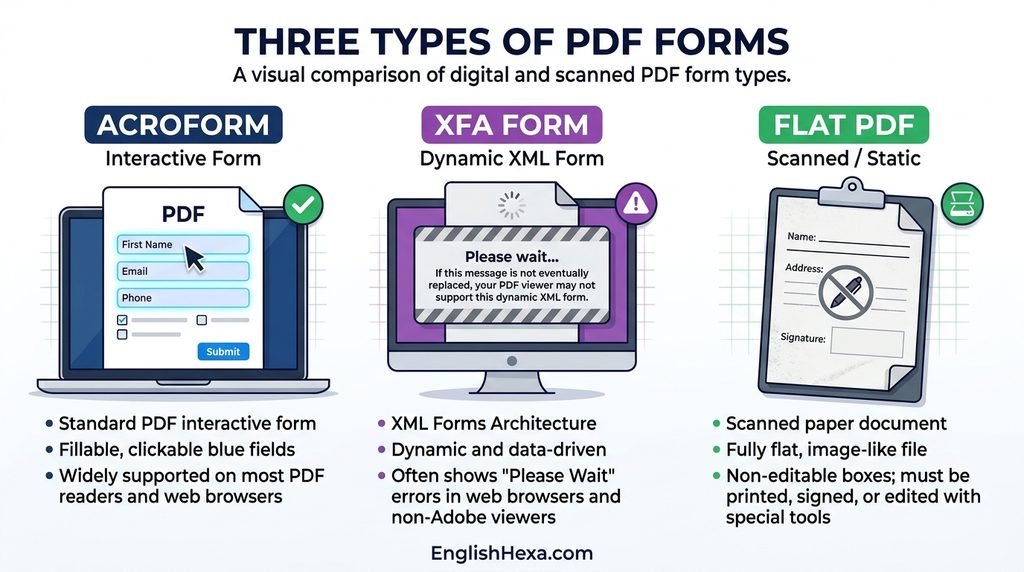
First, Diagnose: Three Things That Look Like a Form
Before blaming a form, a viewer, or yourself, establish what the file actually is. Three different technologies all present as a page with boxes, and each one fails in its own way.
| Form Type | What It Is | How It Fails | Your Move |
|---|---|---|---|
| AcroForm | The standard fillable form: named fields defined by the PDF specification | Viewer differences, save traps, print merging | Fill in a capable viewer; follow the routine |
| XFA form | An older Adobe format describing the form in XML inside the PDF | Most browsers and free viewers show a Please wait page instead of the form | Open in Adobe Acrobat Reader, or request an AcroForm version |
| Flat PDF | A scan or export with boxes drawn on the page and no fields at all | Clicking does nothing; there is nothing to fill | Type on top with a Fill and Sign tool, or request the fillable version |
The cleanest statement of this diagnosis is a practitioner’s breakdown of the three things that look like a form, which also shows how document tools report the form type directly. You do not need the tooling, though. Your click test answers it.
Click where an answer belongs. A real field highlights and accepts typing, and the tab key walks the fields in order. Nothing highlighting means no fields exist, whatever the page looks like.
The Two Minute Diagnosis

1. Click and tab. Click the first answer space, type a test word, then tab forward. Fields that highlight, accept text, and advance in order mean a working AcroForm.
2. Read any placeholder page. A please wait message instead of questions means XFA. Stop troubleshooting your device and change the viewer or the file.
3. Zoom into a box. On a flat scan, the lines and letters soften into pixels as you zoom. Drawn boxes and scanned text are the signature of a picture pretending to be a form.
AcroForm: The Standard
This is the form almost every guide assumes: named fields, each holding one value, rendered by a widget on the page. Chrome, Edge, Firefox, Preview, and Acrobat all fill basic AcroForms, which is exactly why its failures are subtle rather than total.
XFA: The Please Wait Form
XFA forms survive mostly in government and enterprise archives. If a file opens to a page saying please wait while the proper contents load, and they never load, you are looking at an XFA form in a viewer that cannot render it.
Waiting is not a step. The realistic options are Acrobat Reader, which still supports the format, or asking the sender for a compatible version. No setting inside your browser fixes a format it does not implement.
Flat PDF: The Form With No Fields
A flat form is a picture of a form. It may be a scan of paper or a design export, and its boxes are ink, not fields.
Typing on it with an annotation tool adds text to the page, which works, but it is not filling and no data can be extracted from it later.
The Invisible Layer: Why Filled Forms Arrive Blank
Here is the mechanism the whole topic turns on. In the PDF specification, form data lives in a separate interactive layer, the form and annotation structures, not in the page content you see printed on paper.
In practice, the consequences of that separation are walked through clearly in a flattening explainer grounded in the PDF specification.
Your typed answers sit in fields layered over the page, and every viewer, portal, and printer must render that layer correctly for anyone to see them.
When a viewer renders the layer badly, the form looks blank even though your data is inside the file. When a portal ignores the layer, your submission arrives as an empty sheet.
When a recipient opens the live form, your answers remain editable fields, one click away from alteration.
Flattening ends all three problems at once by merging each field’s displayed value into the page itself. The answers become document content: visible identically everywhere, printable everywhere, and no longer fields anyone can type over.
The cost is real and worth respecting. Flattening is one way. A flattened form cannot be refilled, corrected as a form, or mined for its data, which is why every flattening rule in this article applies to a copy, never to your only version.
One layer deeper sits the detail behind the strangest cases. Some files rely on the viewer to draw each field’s visible appearance when displaying it, a mechanism form tools refer to through the NeedAppearances behavior.
A viewer that skips or botches that drawing shows blank fields while the data sits safely inside the file, which is why the same filled form can look complete in one app and empty in another.
Tools that generate appearances before flattening write that drawn value into the file, closing the gap permanently.
Filler Mistakes: Errors Made While Completing a Form
Filler mistakes are the ones with deadlines attached. They cluster into a preventable routine, a rejection layer, and a privacy trap. The routine first, because it quietly prevents most of the rest.
The Routine: Save, Fill, Save As, Verify
1. Save the blank form to your files before touching it. Filling inside an email preview or a browser tab means your work lives in a temporary copy that the preview discards when it closes.
2. Fill the saved copy, in a real viewer. Acrobat Reader handles the widest range of forms, including the XFA files browsers refuse. Saving works the way you expect there, which is not true of every preview.
3. Save As a new file when you finish. Never save over the blank original. A fresh filename keeps the clean form available for a restart and keeps the completed one distinct for sending.
4. Verify by reopening the file you will send. Read it as the recipient will: answers present, totals right, signature in place. This single minute catches lost saves and blank rendering before they become rejections.
The Rejection Mistakes
Skipping required fields is the classic. Dates, addresses, ID numbers, financial amounts, and witness lines are the fields fillers most often leave behind, and a legal form mistakes guide frames the consequence plainly: a single blank can invalidate the whole form.
Signature errors are the second family: forgetting to sign, signing on the wrong line, missing initials on clauses, and signing before a notary appointment that required the signature to happen in the notary’s presence.
Using an old version of the form wastes the entire effort. Organizations revise forms as rules change and refuse superseded versions, so download the blank fresh from the issuer instead of refilling a saved copy.
Format failures look small and are not. Dates in the wrong order, answers written outside the provided spaces, pencil or unreadable handwriting on printed forms: processing staff cannot rescue what they cannot parse.
Not reading the instructions manufactures the other four. Attachment requirements, deadlines, and format rules live in the instructions, and the final review exists to compare your form against them one last time.
The Privacy Mistake
Free online fillers ask you to upload the form, and forms carry the most sensitive data a person routinely handles: ID numbers, addresses, income, health details. That upload is a disclosure to a third party under its own policies.
Fill sensitive forms locally, in a viewer on your own device.
The same wariness appears in AI checker false positives: a tool’s confident output is not the same thing as a safe or correct one, and checking what a tool does with your material is part of using it.
Creator Mistakes: Errors Built Into the Form
Creator mistakes are quieter and more expensive, because one build error is inherited by every filler who touches the form. The families below follow the order a filler experiences them: moving, reading, answering, submitting.
Layout, Flow, and Tab Order
A form is read by keyboard as much as by eye. When the creator never sets the tab order, tabbing follows the order fields were created, and the cursor leaps across columns, to side panels, and to the bottom of the page.
Required fields buried in side columns or after the signature block get missed by design.
The usability analysis of fillable PDFs published by Filerox catalogues these flow failures in detail: group related fields, keep a clear top to bottom order, and put required items where the reading path naturally reaches them.
Test the finished form by keyboard alone before release. Every jump you feel as the builder will be felt by hundreds of fillers as confusion, and several will simply give up or guess.
Labels, Styles, and Field Type Misuse
Unclear labels and absent instructions are the creator’s most common gift to the support inbox. A field named by jargon, with no format example beside it, manufactures wrong format answers at scale.
Fake fields are the visual version: underlines and boxes drawn into the design with no interactive field behind them. Fillers click, nothing happens, and they conclude the form is broken.
Field types carry data meaning. Checkboxes allow any number of independent choices; radio buttons enforce exactly one. Using checkboxes for a pick one question submits contradictions, and radio buttons for a pick all question make correct answers impossible.
Dropdowns fail quietly too. Styled to look like text boxes, they invite typing that goes nowhere, and a list with no Other option forces fillers to choose a wrong value just to proceed.
Required markers must be consistent and enforced. Markers that appear on some required fields and not others, or that rely on color alone, train fillers to ignore them, and a form that accepts empty required fields anyway finishes the lesson.
Validation, Formats, and Calculations
Validation is the form checking its own answers: date fields that expect dates, number fields that reject letters, ranges that reject impossible values. Without it, every filler error travels downstream and resurfaces as a rejection or a retyping job.
Bad validation is its own mistake family.
An error message that says only invalid input, without naming the field or the expected format, strands the user inside the form, a failure mode accessibility guidance on forms and error handling documents carefully for form design generally.
Calculations add ordering traps. A total computed before its inputs update, or built on a field formatted as text instead of number, produces wrong totals that look authoritative. Set the calculation order deliberately, type every numeric field as a number, and test the totals.
Fields also need room to hold their answers. A fixed font size in a small box hides overflow text, which then disappears in print. Auto sizing text and multi line fields for long answers are build decisions, not filler problems.
The Duplicate Name Trap
Copying a field is how forms get built quickly, and every copy inherits the original field’s internal name. In PDF forms, fields that share a name share one value across the entire document.
That behavior is correct for genuinely repeated data, like a name repeated at the top of every page. It is a baffling bug for independent questions built by copying: three address lines that mirror each other, a form that appears to fill itself in.
The fix is naming discipline. Give every independent field a unique, meaningful name, and test the build by typing different values into fields that should differ. If two boxes ever show the same answer, you have found a shared name.
Accessibility: The Mistake With Legal Weight

A screen reader can only announce what the file declares. A field with no tooltip has no accessible name, so the user hears an unlabeled edit box and must guess what it wants.
Reading order and tab order must match the visual order, the document needs real tags and real text rather than scanned images, and instructions cannot rely on color or position alone.
For forms used in US federal contexts, this work sits under Section 508, and the file level standard for accessible PDF is PDF/UA.
Accessibility cannot be retrofitted by the filler or their technology at completion time. It is a build property, decided entirely by the creator, which is why it belongs on the build checklist rather than in troubleshooting.
Compatibility and File Weight
A form tested only in Acrobat has been tested in the most capable viewer, not the one most recipients own.
JavaScript validations and calculations may not run in browser or mobile viewers, XFA does not render there at all, and save behavior varies by app.
Test the release candidate in Acrobat Reader, at least one browser viewer, and on a phone. The goal is not identical behavior everywhere; it is knowing where the form degrades, and simplifying the features that degrade badly.
File weight matters for the same audience. Scans at print resolution and uncompressed artwork make forms crawl on older devices and connections. Optimize the file, then test the optimized copy completely, because aggressive settings can strip the very features you just verified.
Send Side Rules: Master, Flattened Copy, Verified Reopen
Submission is where the three families meet, and three rules govern it. Keep an editable master, send a flattened copy, and reopen the sent file before it leaves.
It is the discipline the same practitioner’s send side workflow ends with: keep the form file, flatten only the copy that travels.
Flattening and locking are routinely confused, and the difference decides real submissions:
| Method | What It Does | What It Prevents | What It Does Not Do |
|---|---|---|---|
| Read only fields | Sets a flag standard typing respects | Casual edits during staged completion | Cannot stop an editor clearing the flag; does not fix blank rendering |
| Password restricted editing | Adds a permissions speed bump | Unthinking modification | Removable by editors; fields and data still live in the file |
| Flattening a copy | Merges values into page content and removes fields | Editing, blank rendering, viewer variance, recalculation surprises | Cannot be undone on that copy; destroys extractable form data |
Choose by purpose. A form still circulating for staged completion gets locked fields. A completed submission gets flattened. A workflow that must extract data keeps the live form and says so in its instructions.
One nuance on printing to PDF: reprinting a filled form through a system printer driver also flattens it, and is a legitimate quick fix, but drivers can inflate file size and substitute fonts.
Prefer a real flattening function when one is available, and always verify the output.
Symptom, Cause, Fix: The Troubleshooting Table
When a form has already failed, work from the symptom. Most PDF form failures have a short list of causes, and the table below is ordered the way support desks actually meet them.
| Symptom | Most Likely Cause | Fix |
|---|---|---|
| Filled form arrives blank | Recipient viewer or portal does not render the data layer | Send a flattened copy; keep your master |
| Fields print blank | Printer merge drops the annotation layer | Pre flatten before printing; check the print markup settings |
| Answers gone after reopening | Filled in a preview that never wrote the file | Refill the saved copy in a full viewer; Save As; verify |
| Please wait page instead of the form | XFA form in a non Adobe viewer | Open in Acrobat Reader; request an AcroForm version |
| Clicking does nothing | Flat PDF with no fields | Fill and Sign typing, or request the fillable version |
| Form fills other boxes itself | Duplicate field names sharing one value | Creator renames fields uniquely; filler reports it |
| Text cut off or missing in print | Fixed font size field with overflow content | Shorten the answer; creator sets auto size or multi line |
| Total changes in the recipient’s viewer | Live calculation scripts rerun with partial support | Flatten the submission copy; creator simplifies calculations |
| Tab key jumps illogically | Tab order never set by the creator | Creator sets logical order and keyboard tests |
| Form rejected despite being complete | Old version, missing initials or attachments | Download fresh, run the final review checklist |
Just how old and persistent the printing row is shows in Adobe’s own community threads on fields printing blank, where users have reported filled sections printing blank across many product versions, and the community workaround has been the same flattening step throughout.
The Preflight Checklists
Filler preflight, before you send:
- The form is the current version, downloaded fresh from the issuer.
- Every required field is complete, including dates, ID numbers, and amounts.
- Signatures and initials sit in every marked place, with witness or notary steps handled as instructed.
- Dates and numbers follow the requested formats everywhere on the form.
- Attachments the instructions require are included.
- The file you are sending was reopened and read after its final save.
Creator preflight, before you release:
- Layout follows reading order, and the tab order was set and keyboard tested.
- Every label is plain language, with a format example beside tricky fields.
- Required markers are consistent, and validation actually enforces them.
- Field types match their questions: radio for one choice, checkboxes for many.
- Every independent field has a unique name; shared names are intentional only.
- Every field carries a tooltip, and the document is tagged with real text.
- The file is optimized, and the release copy was tested in Reader, a browser, and on a phone.
Forms sit inside bigger systems, and the discipline scales. The paperwork habits behind a small business cash flow plan and the process thinking in service business systems treat documents as workflows, which is exactly what a well built form is.
A Note on Numbers You Will See Elsewhere

Guides in this topic often quote precise failure percentages and fix rates for form problems. The credible sources behind the systems in this article publish no such figures, and the pages that do print them do not show where the numbers came from.
Treat those statistics the way our AI vs SaaS tools comparison teaches readers to treat tool claims: as marketing until a method is shown.
The procedures in this article need no percentages to justify them, because every one of them can be tested on your own form in a minute.
Frequently Asked Questions
What are the most common PDF form mistakes?
They fall in three families: filler mistakes, creator mistakes, and the mechanism mistake both sides share.
Fillers lose work in previews and skip signatures. Creators ship broken tab order and duplicate names. The mechanism fools everyone: answers live in a separate layer.
Why does my filled PDF form arrive blank at the other end?
Form answers are stored in an interactive layer, separate from the page content itself.
Some viewers and portals fail to render that layer, so the recipient sees an empty form. Flattening the sent copy merges answers into the page.
Why do my PDF form fields print blank?
Printing asks the printer software to merge the interactive layer into the page image. That merge is where values get dropped.
Pre flattening the file removes the merge from the print path. It is the standard workaround for blank fields.
What does flattening a PDF form mean?
Flattening merges each field’s displayed value into the static page content and removes the field.
The answers become part of the document, identical everywhere and no longer editable. It is one way, so flatten a copy and keep the original.
Should I flatten a filled PDF before sending it?
For a completed form, yes, as a copy. It guarantees the recipient sees your answers and cannot edit them.
Keep your own editable master for corrections. The exception is a workflow that explicitly wants live form data back.
What is the difference between an AcroForm and an XFA form?
An AcroForm is the standard interactive form, with named fields almost every viewer can fill.
An XFA form is an older Adobe format described in XML. Most browsers show a Please wait page instead. Open it in Acrobat Reader.
How can I tell if a PDF is actually fillable?
Click where an answer should go. On a true form, the field highlights and accepts typing, and tabbing moves in order.
If nothing is a field, the file is a flat scan. Use a Fill and Sign tool, or request the fillable version.
Why can’t I type in a PDF form?
Usually one of three reasons: the PDF is flat, the form is XFA in the wrong viewer, or the fields are read only.
Try Acrobat Reader first, since it handles the widest range. Then check whether the document is really a scan.
Why did my PDF form fill in other boxes by itself?
Fields with the same internal name share one value across the whole document. The creator copied a field and every copy kept the name.
It is a feature for repeated data and a bug for independent answers. The creator must rename each field.
Why won’t my filled PDF form save my answers?
Usual causes: filling inside a browser or email preview, opening the file read only, or closing without saving.
The prevention is the routine: save the blank first, fill the saved copy, Save As a new name, then reopen and verify.
What is the save, fill, Save As, verify routine?
Four steps: save the blank to your files, fill that saved copy, Save As a new file, then verify by reopening it.
The blank original survives for a restart, and the reopen proves your answers actually persisted before you send anything.
Why did my form data disappear after I saved and reopened it?
The data was probably never written to the file you reopened. Previews keep answers in memory or in a temporary copy.
Fill in a full viewer, save under a new name, and verify. For the submission copy, flattening removes viewer variance.
What is a digital signature, and is typing my name the same thing?
No. A typed name is a visual mark. A digital signature cryptographically seals the document and reveals later changes.
Which one a form needs is set by the receiving organization. Follow the form’s instructions. This is general information, not legal advice.
Can someone edit a form I filled and sent?
If you sent the live form, yes. Your answers sit in editable fields anyone with a common viewer can change.
That is the core send side rule: keep your editable master, and send a flattened copy whose answers are page content.
Is locking form fields the same as flattening them?
No. Read only is a flag that standard typing respects but any editor can clear; the fields still exist.
Flattening removes the field architecture entirely. Lock while a form circulates; flatten the completed submission.
Why is some of my text cut off in a PDF form field?
The field box is a fixed window. With a fixed font size, a long answer’s overflow stays hidden and can vanish in print.
Shorten the answer, or tell the creator: the fixes are auto sizing text and multi line fields.
Why does the tab key jump around the form in the wrong order?
The creator never set the tab order, so tabbing follows field creation order instead of the reading flow.
The fix is a logical tab order matching the visual layout, tested by keyboard before the form is released.
What are required field markers, and why do they cause mistakes?
They are the asterisks or highlights marking fields that cannot be skipped. Trouble follows when markers are inconsistent or color only.
The complete fix pairs consistent markers with validation that actually enforces them at submission.
What is form validation in a PDF, and why does it matter?
Validation checks entries against rules: a date field expecting a date, a number field rejecting letters.
Without it, errors surface later as rejected applications. With badly designed validation, users get stuck without being told what to fix.
Why do my form’s calculation fields show wrong totals?
Usual causes: wrong calculation order, a field formatted as text instead of number, or a viewer’s partial script support.
Set the order deliberately, type numeric fields as numbers, and test totals in the readers your audience uses.
What is the difference between a checkbox and a radio button in a form?
Checkboxes allow any number of independent choices, including none. Radio buttons form a group where exactly one choice can be selected.
Checkboxes on a pick one question allow contradictory answers. The field type is a data integrity decision.
Why does the form behave differently on my phone or in my browser?
Viewers implement different subsets of the form specification. Browsers and phones handle basic fields but may skip scripts, render XFA not at all, and vary in saving.
A form tested only in Acrobat is tested in the most capable viewer.
What does the “Please wait…” page in a PDF mean?
It is the placeholder page of an XFA form, shown by viewers that cannot render the XML form inside.
Waiting does not help. Open the file in Adobe Acrobat Reader, or ask the sender for an AcroForm version of the form.
How do I make a PDF form accessible?
Give every field a tooltip, its accessible name for screen readers. Align tab order and reading order with the visual order.
Use tagged structure, real text, sufficient contrast, and instructions that do not rely on color alone.
Why do screen readers fail on some fillable forms?
The fields were never given accessible names, the document has no tags defining reading order, or the form is a scanned image.
A screen reader can only announce what the file declares. Accessibility is a build property, not a filler fix.
How can I reduce a PDF form’s file size?
The weight is usually images: oversized scans and uncompressed logos. Downsample appropriately, subset fonts, and remove leftover layers.
Then test the reduced file completely, because aggressive optimization can strip form features.
Is it safe to fill PDF forms with free online tools?
Treat it as a privacy decision. Forms carry names, addresses, ID numbers, and financial or health details, uploaded to a third party server.
For sensitive forms, fill locally on your own device. The caution covers clients’ and employers’ data too.
What should I check before submitting a filled PDF form?
Names spelled as on the matching ID, dates in the requested format, amounts rechecked, and every required field completed.
Signatures and initials in every marked place, attachments included, current version used. Then reopen the exact file you are sending.
Why was my form rejected for using an old version?
Organizations revise forms to match current rules and data needs, and many refuse superseded versions entirely.
The mistake is refilling a saved old blank months later. Download the form fresh from the issuer each time and check its version date.
How do creators prevent the most common form mistakes?
Build against a checklist: reading order layout, labels with format examples, enforced required markers, correct field types, unique names.
Tooltips on every field, keyboard tested tab order, ordered calculations, optimized file, and testing by someone who did not build it.
Why do dropdowns in PDF forms cause errors?
A dropdown styled like a text box invites typing that fails. A list with no Other option forces wrong answers.
Make dropdowns visually distinct, allow custom entries where lists cannot be exhaustive, and use radio groups for few options.
What are fake fields in a PDF form?
Lines and boxes drawn into the page design that look like fields but have no interactive field behind them.
Fillers click, nothing happens, and they blame their device. The creator fix is a real field over every visual answer space.
Can I fill a PDF form on my phone?
Yes for ordinary AcroForms in a capable app, with limits: small tap targets, scripts that may not run, XFA that will not open.
For long or high stakes forms, a computer with Acrobat Reader is safer. Verify twice if the phone is the only option.
Why does my form total change after I send it?
A live form’s calculation scripts rerun in the recipient’s viewer, and partial script support can produce a different result.
A flattened copy cannot recalculate at all. Creators simplify calculations; senders remove the risk by flattening the submission.
What is wrong with copying fields when building a form?
Every copy inherits the original’s internal name, and same name fields share one value document wide.
Repeated data is the legitimate use. Independent questions built by copying silently mirror each other. Rename uniquely and test with different values.
How do I fix a form whose data disappears in Chrome or Edge?
If the form is XFA, the browser cannot be fixed; use Acrobat Reader. If it is AcroForm, finish it in Reader instead.
Produce the keeper copy by printing to PDF or flattening. Report the viewer and version precisely to the form’s owner.
Why do annotations and comments go missing from printed forms?
Comments and typed on text live in the same annotation layer, and print dialogs choose whether that layer is included.
Select the document and markups option when they must print, or flatten so annotations become page content by default.
What instructions should every PDF form include?
Who should complete it, the format expected in tricky fields shown as examples, what happens on submission, and a help contact.
Deadlines and attachment requirements belong there too. Most careless filler errors are instruction failures upstream.
How many fields should a PDF form have?
Only the ones the process genuinely uses. Every field costs the filler time and the owner a data obligation.
Audit each field against the decision or record it feeds, section long forms logically, and never ask twice for the same data.
What is NeedAppearances, in plain terms?
It concerns how a field’s visible appearance gets generated. Some files rely on the viewer to draw each value’s appearance.
Viewers that skip that step show blank fields while the data sits inside the file. Generating appearances before flattening fixes the gap.
How do I stop recipients from changing my submitted form?
Flatten the copy you send; its answers are page content, not fields. A certificate digital signature goes further and exposes tampering.
Read only flags and edit passwords are weaker speed bumps that editors can remove.
What is the single highest value habit for PDF forms?
Verification at the boundary: reopen the exact file being sent and read it as the recipient will see it.
That one habit catches lost saves, blank rendering, wrong versions, cut off text, and missing signatures. It costs a minute.
Conclusion
PDF form mistakes stop being mysterious once the form is diagnosed and the data layer is understood. Fillers prevent their family with one routine: save, fill, Save As, verify.
Creators prevent theirs at build time: honest labels, logical tab order, enforced validation, unique field names, tooltips on every field, and testing in the viewers real people use.
Senders close the last gap with three rules: keep the editable master, send the flattened copy, and reopen what you sent.
Build those habits, keep reading the EnglishHexa blog for the next workflow fix, and the next form, whoever made it, stands a far better chance of arriving exactly as it left.

Dilawar Mughal is an SEO expert with 8 years of hands-on experience helping websites grow their organic traffic, rankings, and revenue. He specializes in content-driven SEO, local SEO, and Pinterest SEO, and builds practical, results-focused strategies for businesses and publishers.
