

Gimkit turns simple quiz questions into a live, competitive, money-earning game, which is why it’s become a classroom favorite. If you’ve never launched a game before, the setup can feel confusing at first but once you know the flow, hosting takes just a few minutes.
This guide covers everything a new host needs: creating an account, picking a game mode, managing a live session, and reading results afterward.
What Is a Gimkit Host?
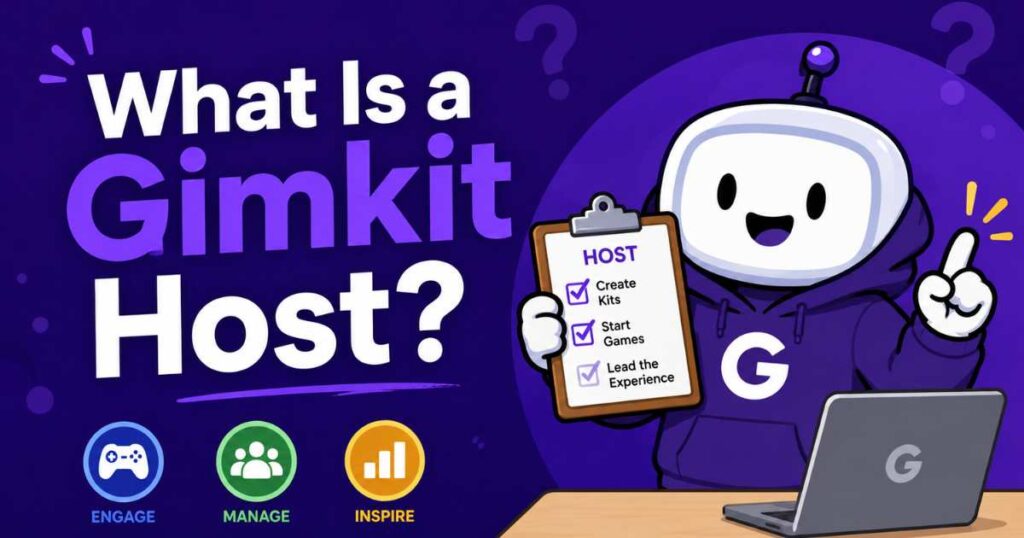
A Gimkit host is the person running the live game usually a teacher, but sometimes a student leading a review session. As the host, you control every part of the experience: which kit (question set) is used, which game mode is active, how long the session runs, and how players join.
Unlike some quiz platforms where the game runs itself, Gimkit puts you in charge throughout. You pick the format, adjust settings on the fly, pause when needed, and review performance data once the game ends. Think of the host role as part quiz-master, part event manager you’re not just clicking “start,” you’re shaping the whole learning experience.
How to Create Your Gimkit Account
Before you can host anything, you need an account:
- Go to gimkit.com and click Sign Up.
- Register with an email address or a Google account.
- Select your role (teacher, student, or other).
- Verify your email if prompted.
- Land on your dashboard, which shows My Kits, Assignments, and Classes.
A free account is enough to start hosting right away, with access to kit creation, several game modes, and live leaderboards. Some advanced features are reserved for Gimkit Pro.
Related post: Labeled vs Labelled: The Complete Guide
Read our trending articles to stay updated with the latest online trends and guides.
Before diving deeper into hosting mechanics, it’s worth bookmarking a few reliable resources so you always know about new game modes, feature updates, and classroom tips as Gimkit continues to evolve.
Starting Ahead: Your First Hosting Mission
Your first session doesn’t need to be complicated. Start small: build a short kit with 10–15 questions, choose Classic Mode, and run a five-minute test game with yourself or a colleague before trying it with a full class.
This “practice run” helps you get comfortable with where the Start button sits, how the game code and join link work, what the leaderboard looks like from the host view, and how to pull up reports afterward. One full run-through makes a real class session feel far less intimidating.
Gimkit host without login
Gimkit requires the host to be logged in, since kits and reports are tied to an account. Players, however, do not need an account they simply visit gimkit.com/join, enter the game code, and type a nickname (or receive an auto-generated one if Nickname Generator is turned on). QR codes make joining even faster for younger students who struggle to type a code correctly.
How to Build a Kit (Your Question Set)
A “kit” is Gimkit’s term for your question bank the foundation every game mode runs on:
- From your dashboard, click New Kit.
- Add a title, subject, and language.
- Add questions manually, import from a spreadsheet or Quizlet set, or pull from Gimkit’s question bank.
- Give each question one correct answer and at least one wrong option.
- Click Finish Kit when done.
You can also host a public kit made by another teacher, though reports are only available for kits you personally own.
How to Host a Live Gimkit Game (Step by Step)
Once your kit is ready, launching a live game follows a consistent flow:
| Step | Action |
| 1 | Click the green Play Live button next to your kit |
| 2 | Choose a game mode from the Mode Picker |
| 3 | Adjust game options (goal, time limit, late join, Nickname Generator) |
| 4 | Click Continue, then share the game code, join link, or QR code |
| 5 | Click Start Game once players have joined |
During non-2D modes, the Start button sits in the upper right corner of the screen. In 2D modes, it’s positioned in the lower center instead. After starting, you and your players move into the live game screen, where you can monitor scores in real time.
Choosing the Right Game Mode
Gimkit offers dozens of game modes, but a handful stand out as the most commonly used for classroom hosting.
Classic Mode
The original Gimkit format. Players answer questions on their own device to earn virtual cash, then spend it on power-ups that boost future earnings. It’s the simplest mode to run and works well for quick review sessions.
Fishtopia
A relaxed, no-elimination 2D mode where players fish, sell their catch, and answer questions to earn upgrades. Because nobody gets knocked out, it’s a good pick for mixed-ability classes or lower-pressure review days.
Tag Domination
A team-based 2D mode where correct answers let players tag opponents and capture territory. It adds a competitive, fast-paced energy that works well with larger groups.
Snowbrawl
A team battle mode where correct answers earn snowballs used to eliminate the opposing team. Like Tag Domination, it thrives with bigger classes since eliminated players can usually keep participating in some form.
Kits Gimkit
Every game mode on Gimkit runs on the same underlying kit meaning one well-built question set can power a dozen different experiences without any extra work. This is part of what makes the platform efficient for repeat use: build the kit once, then rotate modes across the week to keep sessions feeling fresh.
2D Game Modes
These place players inside a visual map instead of a static answer screen. Examples include Fishtopia, Snowbrawl, Tag Domination, Capture the Flag, and Farmchain. Free accounts can access a rotating selection of these.
Pro Exclusive Modes
Gimkit Pro subscribers unlock the full mode catalog, including newer or more advanced releases, plus expanded customization options and the complete cosmetic library for player avatars.
Managing the Game as a Host
Once a session is live, your host screen gives you a control panel, typically in the upper right corner. From here you can monitor the live leaderboard, pause the game to clarify a tricky question, adjust settings mid-game in some modes, and manually end the game early if needed. Staying active narrating progress, celebrating good answers, keeping energy up makes a noticeable difference in how engaged players stay.
Reviewing Results After the Game
When the game ends either by reaching its goal or by you clicking End Game Gimkit generates a detailed report covering individual and class-wide accuracy, which questions caused the most trouble, time spent per question, and overall performance trends. Use these reports to plan your next lesson, identify students who need extra support, and fine-tune your kit for future sessions.
Free Plan vs. Gimkit Pro
| Feature | Free Plan | Gimkit Pro |
| Live hosting | Yes | Yes |
| Kit creation | Yes, with limits | Expanded question bank |
| Game modes | Rotating selection | Full catalog |
| Customization options | Basic | Advanced |
| Cosmetics library | Limited | Complete |
| Reports | Standard | Detailed |
For occasional use, the free plan is more than enough. Teachers who host frequently or want access to every mode usually find Pro worth the upgrade.
Expand Your Gimkit Hosting Toolkit
A few built-in features are worth exploring as you grow more comfortable: KitCollab lets students submit their own questions to a shared kit, turning them into co-creators; Read to Me reads questions aloud for younger students or mixed reading levels; Nickname Generator auto-assigns safe names instead of letting students type their own; and Assignments allow async, homework-style play outside of live class time.
Best Tips for Gimkit Hosting
- Preview your kit before class to catch typos or unclear answers.
- Display the game code somewhere visible the whole session.
- Use QR codes for students who struggle typing codes accurately.
- Watch the leaderboard, but don’t fixate on it watch the room too.
- Close with a quick recap of what the reports show.
Gimkit join
Joining a hosted game is simple from the player side. Students visit gimkit.com/join, enter the game code shown on the host’s screen, and choose a nickname (unless Nickname Generator is enabled). If the host is using Classes, students may be able to join instantly without typing a code at all. A direct join link or QR code also works as a shortcut into the lobby.
Tips to Make Your Gimkit Sessions Better
Mix Question Types
Combine multiple choice, short answer, and true/false formats so the game doesn’t feel repetitive and tests different levels of understanding.
Keep Games Short
Shorter sessions (10–15 minutes) tend to hold attention better than long marathon rounds, especially with younger players.
Use Data Frequently
Check post-game reports after every session, not just occasionally, so you can catch learning gaps early.
Rotate Game Modes
Switching between Classic, Fishtopia, Snowbrawl, and other modes with the same kit keeps review sessions feeling new.
Encourage Team Learning
Team-based modes like Tag Domination and Snowbrawl push stronger and weaker students to collaborate, which often improves retention.
Recognize Reward Growth
Call out students whose in-game earnings or accuracy improved across a session small recognition boosts motivation for the next round.
Conclusion
Hosting your first Gimkit game in 2026 doesn’t require any special training just a basic understanding of the flow: create an account, build or select a kit, choose a game mode, and launch. Once you’ve run through the process once, each future session becomes faster to set up, and you’ll naturally start experimenting with different modes, settings, and features like KitCollab or Nickname Generator to fit your classroom’s needs.
The real value of Gimkit lies in how flexible one question set can be. A single kit can power a calm Fishtopia round one day and a high-energy Snowbrawl battle the next, all while giving you detailed reports to guide future lessons. Start simple, review your results after every game, and gradually build up your hosting toolkit before long, launching a polished, engaging Gimkit session will feel completely second nature.

