
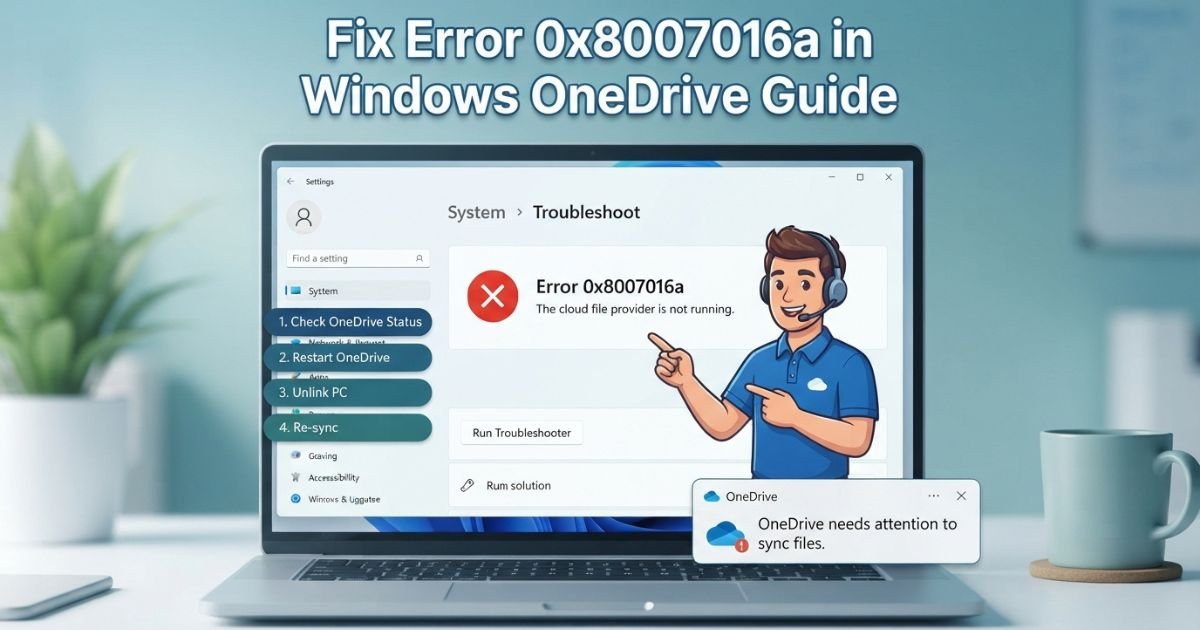

You try to open a file in OneDrive and Windows tells you “The cloud file provider is not running.” It feels alarming, but your data is usually fine. Windows just cannot reach the service that links your PC to your online storage.
This guide explains what error 0x8007016a means, why it appears and how to fix it. The steps run from easy to advanced, and each one is safe to follow.
Quick Summary for People in a Hurry
Error 0x8007016a means the OneDrive sync engine on your PC is stopped or not responding. Try these fixes in order:
- Restart OneDrive and make sure syncing is not paused.
- Turn off Files On-Demand and test again.
- Unlink your account and sign in again.
- Set Windows power mode to Balanced or Best performance.
- Reset OneDrive with the /reset command.
- Reinstall OneDrive and install Windows updates.
- Run DISM and SFC if the error keeps returning.
Most people solve it with the first five steps. Your online files stay untouched throughout.
What is Error 0x8007016a
Error 0x8007016a is a Windows system error. It is the hexadecimal form of the status “ERROR_CLOUD_FILE_PROVIDER_NOT_RUNNING.” The full message reads: “Error 0x8007016A: The cloud file provider is not running.”
A cloud file provider is an app that connects local files to online storage. OneDrive is the default provider on Windows 10 and Windows 11. It works with a Windows component called the Cloud Files filter driver (cldflt.sys). Together, they manage placeholder files, downloads and uploads.
When the provider stops, Windows cannot fetch files that exist only in the cloud. That is when the error appears.
Where you are likely to see the error
- Opening, copying or moving a file stored in OneDrive
- Deleting a file or folder inside the OneDrive directory
- Browsing a folder in File Explorer that freezes or shows 0 KB files
- Syncing the Desktop, Documents or Pictures folders
- Running a backup or antivirus scan over the OneDrive folder
- Starting Windows right after a major update
Related Post: pressvibepulse com Review: Is It Real or Just Hype?
Why Error 0x8007016a Happens: Common Causes Explained
Knowing the cause helps you choose the right fix.
- OneDrive is closed or crashed. With the sync client off, nothing can provide cloud files.
- Files On-Demand conflicts. Placeholder files can fall out of step with the cloud copy.
- Paused or disabled sync. A paused client can leave the provider idle.
- Aggressive power saving. Battery saver can stop background processes, including sync.
- Corrupted OneDrive settings or cache. Damaged local data can stop the client from starting properly.
- A faulty Windows update. Some updates break the link between OneDrive and the Cloud Files driver.
- Stopped sync services. OneSyncSvc and related services support sync tasks.
- Damaged system files. Corruption in Windows can break the driver stack.
- One problem file or folder. A locked, oversized or badly named item can stall everything.
- Security software interference. Some antivirus or backup tools lock files OneDrive needs.
Safety First Checklist: Before You Start
Spend five minutes protecting your data. Reset and reinstall are safe, but a backup costs nothing.
- Check your files online. Sign in to OneDrive on the web and confirm your files are there.
- Copy local-only files. Look for items with a “sync pending” status and copy them to a USB drive or a folder outside OneDrive.
- Know your login. For work or school accounts, keep your email and password ready.
- Create a restore point. Search “Create a restore point” in the Start menu and click Create.
- Close other apps. This avoids file locks while you troubleshoot.
- Use an admin account for steps that need it.
- Change one thing at a time. Test after each fix so you know what worked.
Step-By-Step Fixes Start with The Easiest
1 Make sure OneDrive is running and syncing
- Look for the cloud icon in the system tray near the clock.
- If it is missing, click the up arrow to show hidden icons.
- Still missing? Press Start, type OneDrive and open the app.
- Click the cloud icon. If it says “Sync paused,” choose Resume syncing.
- Wait for the “Up to date” message.
If OneDrive will not open, restart your PC and try again. A reboot often reloads the provider and clears the error.
2 Turn off Files On-Demand, then test
Files On-Demand saves disk space, but it is also the most common source of this error. Turning it off keeps real copies on your device.
- Click the OneDrive cloud icon.
- Select the gear icon, then Settings.
- Open Sync and backup, then Advanced settings.
- Find Files On-Demand and choose Download all files now, or turn the feature off.
- Let the sync finish.
Check your free disk space first. Downloading everything needs room for all your OneDrive content. Then test the file that failed before.
3 Resume sync and sign in again if needed
An outdated sign-in token can break the connection to the provider. A fresh sign-in often repairs it.
- Open OneDrive Settings.
- Go to Account.
- Click Unlink this PC and confirm.
- Sign in again with your Microsoft or work account.
- Choose your OneDrive folder and finish setup.
Your cloud files stay safe during unlinking. OneDrive compares local and online copies after you sign in.
4 Switch off power saving and set balanced or high performance
Windows may pause background tasks to save energy, which can stop the sync engine.
- Open Settings, then System, then Power & battery.
- Turn off Battery saver or lower its threshold.
- Under Power mode, choose Balanced or Best performance.
- On Windows 10, use Control Panel, then Power Options, and pick a Balanced or High performance plan.
- In OneDrive Settings, uncheck the option that pauses sync in battery saver mode.
Restart OneDrive and test again.
Intermediate Fixes, Reset and Repair Steps
5 Reset OneDrive
A reset clears the local cache and settings. It does not delete your files.
- Press Windows + R to open Run.
- Paste this command and press Enter:
%localappdata%\Microsoft\OneDrive\onedrive.exe /reset
- If Windows cannot find the file, try one of these instead:
C:\Program Files\Microsoft OneDrive\onedrive.exe /reset
C:\Program Files (x86)\Microsoft OneDrive\onedrive.exe /reset
- Wait a minute. The tray icon will vanish and usually returns on its own.
- If it does not return, open OneDrive from the Start menu.
After a reset, OneDrive runs a full comparison. Large libraries can take a while, so be patient.
6 Reinstall OneDrive
If the reset fails, reinstall the app.
- Open Settings, then Apps, then Installed apps.
- Select Microsoft OneDrive and click Uninstall.
- Restart your PC.
- Download the latest installer from Microsoft’s official OneDrive page.
- Run it and sign in.
You can also reinstall from a local setup file, found at C:\Windows\System32\OneDriveSetup.exe or C:\Windows\SysWOW64\OneDriveSetup.exe depending on your system. Avoid third-party download sites.
7 Install Windows updates
OneDrive relies on Windows components. A buggy or missing update can trigger the error.
- Open Settings, then Windows Update.
- Click Check for updates.
- Install everything available, including optional quality updates.
- Restart your PC.
If the error began right after an update, open Update history and uninstall the latest update as a test, or use your restore point. Microsoft often patches such problems within weeks.
Advanced Troubleshooting if the Error Persists
8 Identify and remove a single problematic folder or file
One bad item can block the whole sync. Here is how to find it.
- Open the OneDrive activity center and look for items marked “Can’t sync.”
- Check file names for illegal characters such as * : < > ? / \ | “.
- Check path length. Paths longer than 260 characters can cause trouble.
- Look for very large files or files held open by another app.
- Move the suspect item out of OneDrive to a temporary folder.
- Let OneDrive sync, then test.
- Rename or shorten the item, then move it back.
If you cannot delete a folder because of the error, reset OneDrive first and try again.
9 Check OneSyncSvc and related sync services
Sync tasks depend on background services. If they are stopped, the provider can fail.
- Press Windows + R, type services.msc and press Enter.
- Find Sync Host (OneSyncSvc followed by a random suffix).
- Right-click it and open Properties.
- Set Startup type to Automatic (Delayed Start).
- Click Start if the service is stopped, then Apply and OK.
Next, confirm the Cloud Files driver is loaded. Open Command Prompt as administrator and run:
sc query cldflt
The state should read RUNNING. If it does not, the next step may repair it.
10 Use the System File Checker and DISM tools
These built-in tools repair damaged Windows files.
- Search for Command Prompt, right-click it and choose Run as administrator.
- Run the DISM repair first:
DISM /Online /Cleanup-Image /RestoreHealth
- When it finishes, run the System File Checker:
sfc /scannow
- Restart your PC when the scan completes.
DISM can take 15 to 30 minutes. Do not close the window early.
Helpful Scripts and Commands
Run these from Command Prompt as administrator unless noted.
| Task | Command |
| Reset OneDrive | %localappdata%\Microsoft\OneDrive\onedrive.exe /reset |
| Close OneDrive | taskkill /f /im OneDrive.exe |
| Check cloud driver | sc query cldflt |
| Repair Windows image | DISM /Online /Cleanup-Image /RestoreHealth |
| Scan system files | sfc /scannow |
| Reinstall with Winget | winget install Microsoft.OneDrive |
A short PowerShell script to restart OneDrive cleanly:
Stop-Process -Name OneDrive -Force -ErrorAction SilentlyContinue
Start-Sleep -Seconds 3
Start-Process “$env:LOCALAPPDATA\Microsoft\OneDrive\OneDrive.exe”
Read every command before you run it, and never paste commands from an unknown source.
When to Contact Support or Your IT Administrator
Ask for help if any of these apply:
- You use a work or school account with managed policies.
- The error continues after SFC, DISM and a reinstall.
- You see other OneDrive codes, such as storage or permission errors.
- Files seem missing and are not in the online recycle bin.
- Group Policy, Intune or endpoint security tools control OneDrive.
- Several users on the same network report the same error.
Share these details with support:
- Your Windows version and build number
- Your OneDrive version (Settings, then About)
- The exact error text and when it started
- The steps you have already tried
Pros and Cons of Each Fix Option
| Fix | Pros | Cons |
| Restart OneDrive | Fast, no risk | Rarely fixes deep issues |
| Turn off Files On-Demand | Solves many cases | Uses more disk space |
| Unlink and sign in | Refreshes the account link | Needs your credentials |
| Change power mode | Easy, helps laptops | Slightly more battery use |
| Reset OneDrive | Clears bad settings | Full resync takes time |
| Reinstall OneDrive | Replaces damaged files | Needs download and sign-in |
| Windows updates | Fixes known bugs | May need time and a restart |
| Remove problem file | Targets the real cause | Finding it takes patience |
| Service check | Fixes sync service issues | Needs admin rights |
| SFC and DISM | Repairs Windows itself | Slow, and not always the cause |
Practical Real-World Troubleshooting Plan
Follow this order to save time. It mirrors how support teams work.
Phase 1: Quick checks (5 minutes)
- Restart OneDrive.
- Resume sync.
- Reboot the PC.
Phase 2: Settings (10 minutes)
4. Change the power mode.
5. Turn off Files On-Demand.
6. Unlink and sign in again.
Phase 3: Repair (20 minutes)
7. Reset OneDrive.
8. Install Windows updates.
9. Reinstall OneDrive if needed.
Phase 4: Deep fixes (45 minutes)
10. Hunt down the problem file.
11. Check sync services.
12. Run DISM and SFC.
Phase 5: Escalate
13. Contact support with your notes.
Keep a short log of each change. It speeds up any later help request.
Common Error Scenarios and Responses
- The error appears after a Windows update. Install the newest updates. If it persists, remove the latest update or use System Restore.
- Files show 0 KB. Turn off Files On-Demand and let OneDrive download the real files.
- The error happens only on battery. Disable battery saver and use Balanced power mode.
- You cannot delete a OneDrive folder. Reset OneDrive, then retry. Check for a locked file inside if it still fails.
- The error appears during a scan or backup. Exclude the OneDrive folder from the scan or run it at another time.
- The tray icon is missing. Launch OneDrive from Start, then confirm it is enabled under Startup apps.
- Only one user on a shared PC is affected. Test with a new Windows profile, since a damaged profile can break sync services.
Troubleshooting Checklist for IT Professionals
- [ ] Confirm the OneDrive client version matches your deployment ring
- [ ] Verify cldflt is running and not blocked by a filter conflict
- [ ] Review Event Viewer logs for Cloud Files and OneDrive errors
- [ ] Check Files On-Demand policies in Group Policy or Intune
- [ ] Look for endpoint protection that locks sync paths
- [ ] Verify the OneSyncSvc startup type
- [ ] Review Known Folder Move settings for conflicts
- [ ] Check path length and invalid character issues
- [ ] Confirm the latest cumulative Windows update is installed
- [ ] Test with a clean user profile
- [ ] Collect logs using OneDrive’s built-in reporting tools
- [ ] Document the fix in your knowledge base
Conclusion
Error 0x8007016a looks serious, but it is almost always fixable. It means the OneDrive provider on your PC has stopped, not that your files are gone.
Start simple. Check that OneDrive is running, turn off Files On-Demand and fix your power settings. If that fails, reset or reinstall OneDrive and update Windows. Keep SFC, DISM and service checks for stubborn cases.
Work in order, test after each change and back up first. If the error still will not go away, contact Microsoft support or your IT team with the details you gathered.
Frequently Asked Questions
What does error 0x8007016a mean in OneDrive?
It means Windows cannot reach the OneDrive cloud file provider because the sync engine is stopped, paused or unresponsive.
Does error 0x8007016a delete my files?
No. Your files stay safe in OneDrive online. The error only blocks access from your PC.
Is it safe to reset OneDrive?
Yes. A reset clears cache and settings but does not delete your files, though a full resync may take time.
Should I turn off Files On-Demand permanently?
Not necessarily. Turn it off to test, and re-enable it later if you need to save disk space.
Does this error affect Windows 11 as well as Windows 10?
Yes. Both versions use the same Cloud Files driver and can show this error.
Can battery saver cause the cloud file provider error?
Yes. Battery saver can pause background sync, so switch to Balanced or Best performance.
What if the error returns after a reset?
Reinstall OneDrive, install Windows updates, then run DISM and SFC to repair system files.
Can antivirus software trigger error 0x8007016a?
Yes. Security tools that lock files in the OneDrive folder can interrupt sync, so try excluding that folder.
When should I contact Microsoft support?
Contact them if the error survives a reinstall and system repairs, or if files appear to be missing.

