

You open Task Manager and spot “Service Host: IP Helper” using memory or a little CPU. Naturally, you wonder if it is a virus.
It is not. iphlpsvc is the legitimate Windows IP Helper service. It helps your PC use IPv6 on networks that still run mostly on IPv4. In most cases, you can leave it alone. In a few cases, you can stop it safely.
This guide explains what iphlpsvc does, how to confirm it is genuine, when to disable it, and how to fix it if it misbehaves. Every step works on Windows 10 and Windows 11.
⚙️ What is iphlpsvc (IP Helper) in Windows?
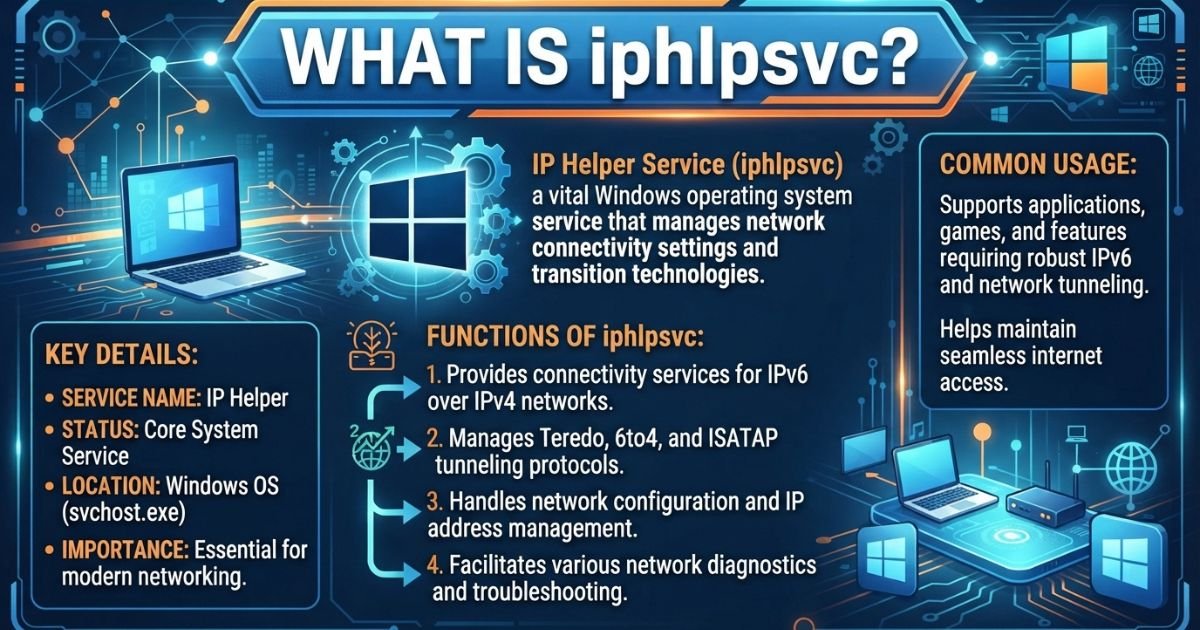
iphlpsvc is a built-in Windows background service named “IP Helper.” It manages tunnel connectivity so IPv6 traffic can travel across IPv4 networks. Windows loads it through the file iphlpsvc.dll, which runs inside a shared svchost.exe process.
That is why Task Manager shows it as “Service Host: IP Helper” and not as a standalone program.
The internet is still moving from IPv4 to IPv6. Many home routers and internet providers support only one of them well. Windows needs a bridge between the two, and iphlpsvc is part of that bridge.
Quick facts:
- Service name: iphlpsvc
- Display name: IP Helper
- Default startup type: Automatic
- Runs under: Local System account
- Core file: C:\Windows\System32\iphlpsvc.dll
- Hosted by: svchost.exe
A note on naming: do not confuse the service with the IP Helper API (iphlpapi.dll). Programmers use that API to read network settings. The service is a separate component that handles tunneling.
🧩 Key Responsibilities of iphlpsvc:
The service handles several network jobs in the background:
- 6to4 tunneling: Wraps IPv6 packets inside IPv4 so they can cross older networks.
- ISATAP: Helps devices on a private IPv4 network communicate over IPv6, mostly in business environments.
- Teredo tunneling: Lets IPv6 traffic pass through a NAT router. Some games and Xbox features rely on this.
- IP-HTTPS: Carries IPv6 traffic over a secure HTTPS connection, used by features like DirectAccess.
- Port proxy: Supports port forwarding rules created with the netsh interface portproxy command.
- Network change tracking: Responds when your adapter, address, or connection status changes.
Most home users touch none of these features directly. Still, Windows may use them silently when your connection needs them.
🛡️ Is iphlpsvc Safe or a Virus?
Yes, iphlpsvc is safe. Microsoft ships it with Windows, and it is not malware by default.
However, malware authors sometimes name harmful files after trusted Windows processes. So a safe service name does not guarantee a safe file. Here is how to verify yours.
Check 1: Confirm the file location
- Press Ctrl + Shift + Esc to open Task Manager.
- Find Service Host: IP Helper and expand it.
- Right-click the entry and choose Go to details.
- Right-click the highlighted svchost.exe and select Open file location.
- The folder should be C:\Windows\System32.
Check 2: Verify the digital signature
- Go to C:\Windows\System32 and locate iphlpsvc.dll.
- Right-click it and open Properties.
- Open the Digital Signatures tab.
- Confirm the signer is Microsoft Windows.
Check 3: Scan the system
Run a full scan with Microsoft Defender. Add a second opinion scanner if you want extra confidence.
Warning signs of a fake:
- The file lives in a user folder, Temp, or AppData.
- It has no digital signature.
- It uses heavy CPU for long periods without a reason.
- Your browser behaves oddly or shows unfamiliar ads.
If any of these apply, run a full malware scan right away.
⚠️ Can You Disable iphlpsvc?
Yes, you can disable iphlpsvc on most personal PCs. Windows will keep working. You just lose the tunneling features listed above.
The right choice depends on how you use your computer. Think of it as a trade: a small amount of memory saved against features you may need later.
🧠 When It’s Safe to Disable:
Disabling is usually fine if:
- You use a basic home or office network with no special setup.
- You do not use Xbox network features or Teredo dependent games.
- You do not use VPN tools that rely on IPv6 tunneling.
- You do not use port proxy rules.
- Your PC is a standalone machine that only browses, streams, and does office work.
- You have confirmed iphlpsvc is the actual cause of a performance problem.
Related Post: Inside the Aelftech com Team 2026: People Behind the Vision
❌ When NOT to Disable:
Leave it running if:
- You work in a corporate network that uses DirectAccess, ISATAP, or IPv6 transition tools.
- You use netsh interface portproxy for development, testing, or remote access.
- You play online games or use Xbox features that need Teredo.
- You run virtual machines, containers, or WSL setups that depend on port forwarding.
- Your IT administrator manages your device.
- You are not sure what you rely on. In that case, test by stopping the service first, not disabling it.
Quick decision table:
| Your situation | Recommendation |
| Basic home PC, no special tools | Safe to disable |
| Gaming or Xbox features | Keep enabled |
| Developer using port forwarding | Keep enabled |
| Work or domain computer | Ask IT first |
| Unsure | Stop temporarily and test |
🧰 How to Stop or Disable iphlpsvc Safely (Step-by-Step)
Always create a restore point before changing services. It takes a minute and gives you an easy way back.
🛑 Temporarily Stop the Service
Stopping the service ends it for the current session. It will return after a restart.
Method 1: Services app
- Press Windows + R, type services.msc, and press Enter.
- Scroll to IP Helper.
- Right-click it and choose Stop.
Method 2: Command Prompt (Admin)
net stop iphlpsvc
This is the cleanest way to test whether the service affects any of your apps. If everything works for a day or two, you can consider a permanent change.
🚫 Permanently Disable iphlpsvc
Disabling prevents the service from starting at boot.
Method 1: Services app
- Open services.msc.
- Double-click IP Helper.
- Click Stop if it is running.
- Set Startup type to Disabled.
- Click Apply, then OK.
Method 2: Command Prompt (Admin)
sc config iphlpsvc start= disabled
net stop iphlpsvc
Note the space after start=. It is required.
Method 3: Registry Editor (advanced)
- Press Windows + R, type regedit, and press Enter.
- Go to HKEY_LOCAL_MACHINE\SYSTEM\CurrentControlSet\Services\iphlpsvc.
- Double-click Start and set the value to 4.
- Restart your PC.
Use the registry method only if you are comfortable editing it. A wrong change can cause problems.
Some Windows builds may grey out the Stop button or return an access error. If that happens, run your tool as administrator or use the command line method.
🔁 Re-enable Later (Default)
If something stops working, restore the default setting.
Services app:
- Open services.msc and double-click IP Helper.
- Set Startup type to Automatic.
- Click Start, then Apply.
Command Prompt (Admin):
sc config iphlpsvc start= auto
net start iphlpsvc
Registry: set the Start value back to 2.
🧪 How to Check if iphlpsvc Is Causing High CPU or Memory Usage
Because iphlpsvc shares svchost.exe, the numbers you see can be confusing. Follow these steps to confirm it is the real problem.
- Open Task Manager with Ctrl + Shift + Esc.
- Click the Processes tab and find Service Host: IP Helper.
- Watch the CPU and Memory columns for a few minutes.
- Switch to the Details tab to see the process ID (PID).
- Right-click the process and choose Go to Service(s) to confirm iphlpsvc is the one listed.
For deeper analysis, open Resource Monitor (type resmon in the Start menu). Under the Network tab, check which processes use the most bandwidth. Under the CPU tab, look at the Services section.
What counts as normal?
- Small memory use and near zero CPU: This is healthy. Leave it alone.
- Occasional short spikes: Usually tied to network changes like connecting to Wi-Fi.
- Constant high CPU or growing memory: This points to a conflict, a bug, or a tunneling issue worth fixing.
🧹 Fix: iphlpsvc High CPU or Memory Usage
Start with the simple fixes. Work down the list only if the problem remains.
1️⃣ Restart the Service
A restart clears temporary glitches.
- Open services.msc.
- Right-click IP Helper and select Restart.
Or use the command line:
net stop iphlpsvc
net start iphlpsvc
2️⃣ Reset the Network Stack
Corrupted network settings can make the service loop or leak memory. Open Command Prompt as administrator and run:
netsh winsock reset
netsh int ip reset
ipconfig /flushdns
Restart your PC afterward. Note that this removes custom network settings, such as static IP configurations, so write them down first.
3️⃣ Run System Repairs
Damaged system files can cause strange service behavior. Run these in an admin Command Prompt, one at a time:
sfc /scannow
DISM /Online /Cleanup-Image /RestoreHealth
SFC checks and repairs protected files. DISM repairs the Windows component store that SFC relies on. Also install pending Windows updates, as Microsoft often patches network service bugs.
4️⃣ Check for VPN or Tunneling Apps
Third-party VPNs, virtual adapters, and security suites can interact poorly with IP Helper. Look for:
- VPN clients with IPv6 or TAP adapters
- Old virtual network drivers
- Virtualization software with extra adapters
Update the software, or temporarily uninstall it to test. Also open Device Manager, show hidden devices, and remove stale network adapters you no longer use.
5️⃣ Disable IPv6 if Not Needed
If you are sure you do not need IPv6, you can turn it off per adapter:
- Open Control Panel and go to Network and Sharing Center.
- Click Change adapter settings.
- Right-click your active connection and choose Properties.
- Uncheck Internet Protocol Version 6 (TCP/IPv6).
- Click OK.
You can also disable only Teredo with this command:
netsh interface teredo set state disabled
This is a softer option than fully disabling IPv6. Microsoft generally advises against turning IPv6 off completely, since some Windows features expect it. If you only want to stop tunneling, the Teredo command or the service change is usually enough.
📈 Should You Keep iphlpsvc Running?
For most people, the answer is yes. The service uses very little memory under normal conditions, and the risk of breaking something is small but real.
Here is a practical rule:
- If there is no problem, leave it enabled. Saving a few megabytes rarely changes how your PC feels.
- If there is a clear problem, fix the cause first. Restart the service, reset the network stack, and repair system files.
- If fixes fail, stop the service and test. Use a temporary stop before a permanent disable.
- If you manage a work device, check with IT. Network policies may depend on it.
Modern Windows relies on many small services working together. Turning off one often brings no visible benefit but can cause hard to trace issues later. Disabling should be a targeted decision, not a habit.
✅ Key Takeaways
- iphlpsvc is the Windows IP Helper service. It supports IPv6 tunneling and port proxy features.
- It is safe by default. Verify the file location and Microsoft digital signature to rule out fakes.
- It runs inside svchost.exe, so it appears as “Service Host: IP Helper” in Task Manager.
- Disabling is possible on simple home PCs but not recommended for gamers, developers, or corporate users.
- Test before you commit. Stop the service temporarily, then disable it only if nothing breaks.
- Fix high usage in a clear order: restart the service, reset the network stack, run SFC and DISM, check VPN software, then consider IPv6 settings.
- You can always reverse the change by setting the startup type back to Automatic.
❓ FAQs
What does iphlpsvc stand for?
It stands for IP Helper service, a Windows component that manages IPv6 tunneling and related network features.
Is iphlpsvc a virus?
No. It is a genuine Microsoft service, but you should confirm the file sits in System32 and carries a Microsoft signature.
Is it safe to disable IP Helper in Windows 11?
Yes, on most standard home PCs. Avoid it if you use Xbox networking, port proxy rules, or work network tools.
Why is Service Host: IP Helper using so much memory?
It is usually caused by network glitches, VPN conflicts, or corrupted system files. Restarting the service often fixes it.
What happens if I disable iphlpsvc?
You lose IPv6 tunneling features like Teredo and 6to4, plus port proxy support. Normal browsing usually keeps working.
How do I disable iphlpsvc using Command Prompt?
Run sc config iphlpsvc start= disabled as administrator, then net stop iphlpsvc.
How do I turn iphlpsvc back on?
Run sc config iphlpsvc start= auto and net start iphlpsvc, or set the startup type to Automatic in Services.
Does disabling iphlpsvc improve gaming performance?
Rarely. It may even hurt if your games use Teredo for multiplayer connectivity.
Can iphlpsvc cause internet problems?
Occasionally, if tunneling settings or network drivers are corrupted. Resetting Winsock and the IP stack usually resolves it.
Where is iphlpsvc located?
The service file is iphlpsvc.dll in C:\Windows\System32, loaded through svchost.exe.
Conclusion
iphlpsvc is a quiet but useful part of Windows networking. It bridges IPv4 and IPv6 so your PC stays connected across different network types. It is not a virus, and it rarely needs your attention.
If it behaves normally, leave it alone. If it causes high CPU or memory usage, try the fixes in order before disabling anything. And if you decide to turn it off, do it step by step: stop it first, test your apps, then disable it only when you are sure.
Small, careful changes protect your system. Always create a restore point, verify the file is genuine, and keep the re-enable commands handy. With that approach, you stay in control without risking your connection.

Benjamin Reed is a passionate writer who shares insightful and engaging content on lifestyle, trends, and everyday topics.
