

Port forwarding rules that suddenly stop working. An IPv6 tunnel that refuses to connect. A VPN client that complains about a missing network component. If any of this sounds familiar, the IP Helper service (iphlpsvc) may be switched off on your PC.
The good news is that turning it back on takes about a minute. The better news is that you have four ways to do it, and each one works on Windows 10, Windows 11 and recent Windows Server editions.
This guide shows every method in plain language, explains what the service does, and covers the errors that appear when Windows refuses to cooperate.
Quick Fix: Enable iphlpsvc Fast in Windows
Short on time? Here is the fastest route using the Services app.
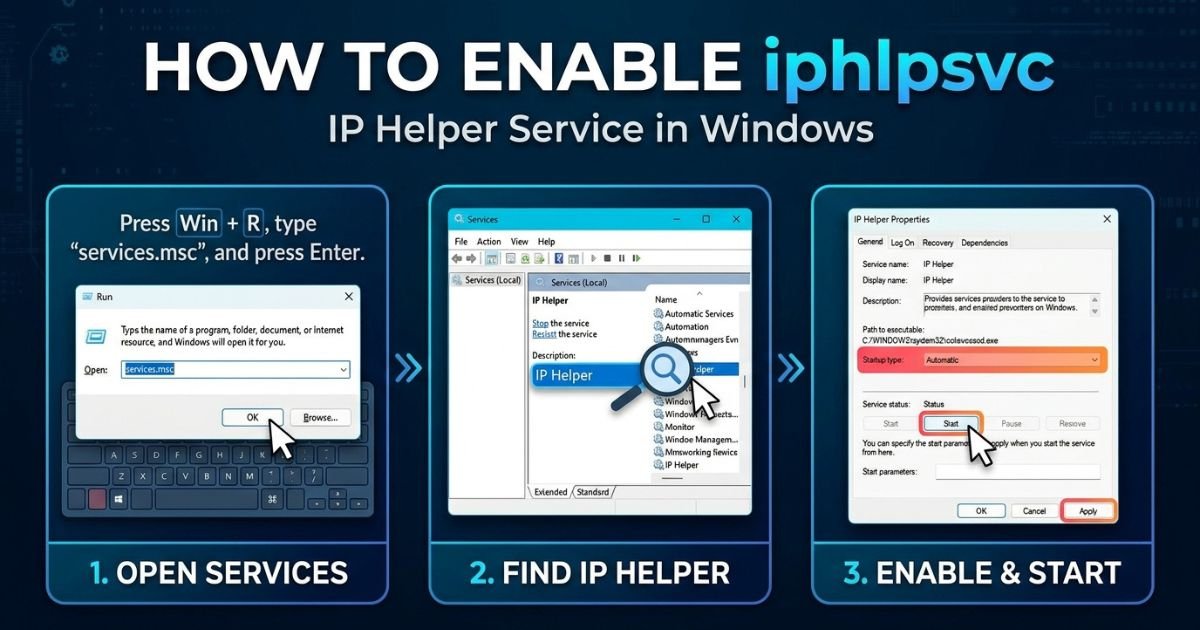
- Press Win + R, type services.msc and press Enter.
- Scroll down to IP Helper.
- Right-click it and choose Properties.
- Set Startup type to Automatic.
- Click Apply, then click Start.
- Click OK.
If you prefer one line, open PowerShell as Administrator and run:
Set-Service -Name iphlpsvc -StartupType Automatic; Start-Service -Name iphlpsvc
Check the result with Get-Service iphlpsvc. The status should read Running.
What is iphlpsvc (IP Helper Service)?
iphlpsvc is the short service name for IP Helper, a built-in Windows background service. It is part of the networking stack and loads inside a shared Service Host (svchost.exe) process under the LocalService account.
Its job is to help Windows handle advanced network configuration. In practice, that covers several areas:
- IPv6 transition technologies such as Teredo, 6to4, ISATAP and IP-HTTPS. These let IPv6 traffic travel across networks that only understand IPv4.
- Port proxying, the feature behind netsh interface portproxy rules.
- Network change notifications, so applications learn when an adapter, address or route changes.
- Tunnel connectivity for remote access features such as DirectAccess on Windows Server.
On a normal Windows 10 or Windows 11 installation, the startup type is Automatic. That means a healthy PC usually has it running without any help from you.
It is also a genuine Microsoft component, not a third-party program. The service is hosted by svchost.exe and its code lives in iphlpsvc.dll inside the System32 folder. If you ever see something with a similar name running from an odd folder, treat that as suspicious and scan it.
When You Need It
Basic browsing, streaming and email usually work fine without this service. Trouble begins when you use features that quietly depend on it.
You should enable iphlpsvc when:
- You use port forwarding with netsh interface portproxy, which is common for exposing a WSL or virtual machine service to your local network.
- You rely on IPv6 tunneling or an ISP that delivers IPv6 through a transition mechanism.
- You run DirectAccess or other remote access roles on Windows Server.
- A VPN or network tool reports that a required service is not running.
- A developer tool or lab setup stops reaching a forwarded port after a reboot.
You can leave it disabled if nothing on the machine uses these features. Even then, switching it off saves very little, because the service is light on a healthy system. Enabling it is for the case where it is disabled or stopped, not misbehaving.
Related Post: What Is iphlpsvc? The Complete Guide to Windows’ IP Helper Service (Safe to Disable?)
Before You Enable It (Safety First)
Windows services are low risk, but a few quick habits protect you.
- Sign in as an administrator. Standard accounts get an “Access is denied” message.
- Create a restore point. Search for “Create a restore point” in the Start menu and click Create.
- Check why it was disabled. If you did not turn it off yourself, a “PC optimizer,” a debloat script or a Group Policy setting may have done it. Find the cause so it does not happen again.
- Run a malware scan. Windows Security’s full scan takes a while, but it rules out tampering.
- Export the registry key if you plan to use Method D. In Registry Editor, right-click the iphlpsvc key and choose Export.
Method A: Enable iphlpsvc Using Services (GUI)
This is the easiest option and the one most people prefer.
- Press Win + R, type services.msc and press Enter.
- Click the Name column header so services sort alphabetically.
- Find IP Helper and double-click it.
- Open the Startup type drop-down and choose one of these:
- Automatic starts the service every time Windows boots.
- Automatic (Delayed Start) waits until the system finishes booting, which can help on busy machines.
- Manual starts it only when another component asks for it.
- Click Apply.
- Click Start under Service status, then click OK.
Order matters. If the startup type is currently Disabled, the Start button stays greyed out. Change the startup type and click Apply first. The button becomes available right after.
For most readers, Automatic is the right choice because it matches the Windows default.
Method B: Enable iphlpsvc with PowerShell (Recommended)
PowerShell is quick, scriptable and gives clear feedback. It is the method I would suggest if you manage more than one PC.
Right-click the Start button and open Terminal (Admin) or Windows PowerShell (Admin). Then run these commands one at a time:
Set-Service -Name iphlpsvc -StartupType Automatic
Start-Service -Name iphlpsvc
Get-Service -Name iphlpsvc | Select-Object Name, Status, StartType
A healthy result shows Running under Status and Automatic under StartType.
A few useful variations:
Restart the service if it is running but acting strangely:
Restart-Service -Name iphlpsvc
Use delayed start to reduce boot-time load:
Set-Service -Name iphlpsvc -StartupType AutomaticDelayedStart
- On older PowerShell versions that do not accept this value, use sc.exe config iphlpsvc start= delayed-auto instead.
If PowerShell returns an error such as “Cannot open iphlpsvc service,” the terminal is probably not elevated. Close it and reopen it as administrator.
Method C: Enable iphlpsvc Using Command Prompt (sc.exe / net start)
Command Prompt is handy for batch files, older systems and recovery environments.
Open Command Prompt as Administrator and run:
sc.exe config iphlpsvc start= auto
sc.exe start iphlpsvc
You can also use the older command:
net start iphlpsvc
Three details trip people up:
- The space after start= is required. Without it, sc.exe rejects the command.
- net start does not fix a disabled service. It only starts a service that is allowed to run. If the startup type is Disabled, run the sc.exe config line first.
- Type sc.exe, not sc, inside PowerShell. In PowerShell, sc is an alias for Set-Content, so the shorter form will not talk to the Service Control Manager.
To confirm the result, run:
sc.exe query iphlpsvc
Look for STATE : 4 RUNNING.
Method D: Fix via Registry (Advanced)
Use this method only when the Services app and command line fail, for example when the Start option is locked or the startup type keeps reverting. Editing the wrong value can break networking, so back up first.
- Press Win + R, type regedit and press Enter.
- Go to:
HKEY_LOCAL_MACHINE\SYSTEM\CurrentControlSet\Services\iphlpsvc - Right-click the key and choose Export to save a backup.
- Double-click the Start value and set it to 2 for Automatic.
- Restart your PC. Registry changes to services do not apply to the running session.
Here is what the Start values mean for a Windows service:
| Value | Startup type |
| 2 | Automatic |
| 3 | Manual |
| 4 | Disabled |
For delayed start, keep Start at 2 and add a DWORD value named DelayedAutostart set to 1.
You can also make the change from an elevated Command Prompt:
reg add “HKLM\SYSTEM\CurrentControlSet\Services\iphlpsvc” /v Start /t REG_DWORD /d 2 /f
While you are in the key, look at DependOnService. If the list points to a service that is missing or disabled, iphlpsvc cannot start. Comparing the key against a healthy PC with the same Windows version is the safest way to spot a bad value.
Troubleshooting Common Problems
Most failures fall into a handful of patterns. Work through the one that matches your symptom.
The Start button is greyed out
The startup type is almost certainly set to Disabled. Change it to Automatic, click Apply, and the button unlocks. If the startup type keeps snapping back to Disabled, something else is controlling it. Check for optimization software, endpoint security tools and Group Policy.
The service starts and then stops
Open Event Viewer, go to Windows Logs, then System, and filter for sources such as Service Control Manager. Event IDs 7000, 7001 and 7011 often point to a failed start, a dependency problem or a timeout. The message text names the cause.
Error 1058: disabled or no enabled devices
This message means the service is set to Disabled. Fix the startup type using any method above, then start the service again.
Error 1068: dependency failed
A service that iphlpsvc depends on did not start. Open the Dependencies tab in the service properties, find the service that is stopped, and start it. If network components are broken, run sfc /scannow followed by DISM /Online /Cleanup-Image /RestoreHealth.
Error 1053: service did not respond in time
This is a timeout. Restart the PC first. If it returns, check for a third-party firewall or security suite that delays network services, and review the ServicesPipeTimeout value under HKLM\SYSTEM\CurrentControlSet\Control only if you are comfortable editing it.
The service keeps getting disabled by itself
This pattern shows up in Microsoft support threads, and a clean boot is the standard way to find the culprit. Press Win + R, run msconfig, hide all Microsoft services on the Services tab, disable the rest, reboot and test. Re-enable items in small groups until the problem returns.
Port proxy rules are missing or not working
Run:
netsh interface portproxy show all
If the list is empty, the rules may have been removed, or the service is not running. Start iphlpsvc, then add the rule again. A typical example looks like this:
netsh interface portproxy add v4tov4 listenport=8080 listenaddress=0.0.0.0 connectport=80 connectaddress=192.168.1.10
IPv6 or Teredo is not working
After enabling the service, check the Teredo state:
netsh interface teredo show state
If the TCP/IP stack itself seems damaged, netsh int ip reset and a reboot can help. Use it as a later step, since it resets IP settings.
How to Disable or Revert
You may need to turn the service off again, for instance during a controlled test. Remember that disabling it can break port proxy rules, IPv6 tunneling and some VPN or remote access features.
Services (GUI)
- Open services.msc and double-click IP Helper.
- Click Stop.
- Set Startup type to Disabled.
- Click Apply, then OK.
Command Line
sc.exe stop iphlpsvc
sc.exe config iphlpsvc start= disabled
In PowerShell, you can use:
Stop-Service -Name iphlpsvc
Set-Service -Name iphlpsvc -StartupType Disabled
Windows may warn you that stopping this service affects other services. Read the list before you confirm.
Registry
Set the Start value to 4 under:
HKEY_LOCAL_MACHINE\SYSTEM\CurrentControlSet\Services\iphlpsvc
To undo it later, change the value back to 2, then restart the PC.
Security, Safety, and Stability Notes for iphlpsvc
Is iphlpsvc safe? Yes. It is a signed Windows component that ships with the operating system, so enabling it does not add risk on its own.
Here is what a careful administrator keeps in mind:
- Verify the host process. The legitimate service runs inside svchost.exe from the System32 folder. If a file with a similar name runs from a user folder, investigate it.
- Watch for repeated disabling. A service that turns itself off points to a tweak tool, a script, a policy or, less often, malware.
- Avoid “speed up Windows” tools. They often disable networking services without explaining the side effects.
- Keep Windows updated. Updates repair service definitions and network components that can break startup.
In a managed environment, some organizations disable Teredo or related tunnels on purpose, so check your IT policy before changing anything.
Final Commands Recap
Keep this table handy as a quick reference. Run every command from an elevated window.
| Task | Command |
| Enable and start (PowerShell) | Set-Service -Name iphlpsvc -StartupType Automatic then Start-Service -Name iphlpsvc |
| Enable and start (CMD) | sc.exe config iphlpsvc start= auto then sc.exe start iphlpsvc |
| Start only | net start iphlpsvc |
| Check status | Get-Service -Name iphlpsvc or sc.exe query iphlpsvc |
| Restart | Restart-Service -Name iphlpsvc |
| Delayed start | sc.exe config iphlpsvc start= delayed-auto |
| Disable | sc.exe stop iphlpsvc then sc.exe config iphlpsvc start= disabled |
| Registry (Automatic) | reg add “HKLM\SYSTEM\CurrentControlSet\Services\iphlpsvc” /v Start /t REG_DWORD /d 2 /f |
FAQs About iphlpsvc (IP Helper Service)
What is iphlpsvc in Windows?
It is the IP Helper service, a built-in Windows service that supports IPv6 transition technologies, port proxying and network change notifications.
How do I enable iphlpsvc?
Open Services, set IP Helper to Automatic, then click Start. You can also run Set-Service and Start-Service in an elevated PowerShell window.
Is it safe to enable iphlpsvc?
Yes. It is a genuine Microsoft service that runs by default on Windows 10 and Windows 11.
What is the default startup type for IP Helper?
It is Automatic on standard Windows 10 and Windows 11 installations.
Why is the Start button greyed out for IP Helper?
The service is probably set to Disabled. Change the startup type to Automatic, click Apply, and the button becomes active.
Can I disable iphlpsvc permanently?
Yes, but port proxy rules, IPv6 tunnels, and some VPN or remote access features may stop working.
Why does iphlpsvc keep turning itself off?
A tweak tool, script, Group Policy or security product is usually responsible. A clean boot helps identify the cause.
Do I need iphlpsvc for netsh interface portproxy?
Yes. Port proxy rules depend on the IP Helper service being running.
What should I do if iphlpsvc is missing?
Run sfc /scannow and DISM /Online /Cleanup-Image /RestoreHealth from an elevated prompt, then restart your PC.
Final Thoughts
Turning on iphlpsvc is a small fix with a big effect when your network features depend on it. The Services app works for most people. PowerShell is cleaner for repeat tasks, Command Prompt suits scripts, and the registry is your last resort.
Remember the order that causes the most confusion: change the startup type first, then start the service. If it fails, read the exact error code, check Event Viewer and verify dependencies before trying anything drastic.
Once the service shows Running, test the feature that sent you here, whether that is a port proxy rule, an IPv6 connection or a VPN. If everything works, you are done. If it does not, the troubleshooting section above should point you to the next step.

